

Appearance
User guide for Seller Terms & Conditions
You might be using the Multi-vendor Marketplace App on your Shopify store. This app allows sellers to get registered to your marketplace and sell products.
Once a user gets registered as a "Seller" to a marketplace, there has to be a contract between the admin & the user.
For that, it is crucial to allow sellers to accept terms & conditions for the sale of products or services.
Using the app, you can add terms & conditions for your sellers. Thus, the seller gets the option to accept it at the time of registration.
Moreover, you will also get the option to accept the terms & conditions (on behalf of the seller) in case you create your seller's profile.
Let's dig deeper & follow the steps:-
Add Seller Terms & Conditions
The first & foremost step is to add terms & conditions from the admin panel of the Multi-vendor app.
Go to admin panel>>Click the three-dots (upper right corner of the admin dashboard). Now, click the Terms & Conditions menu in the drop-down.
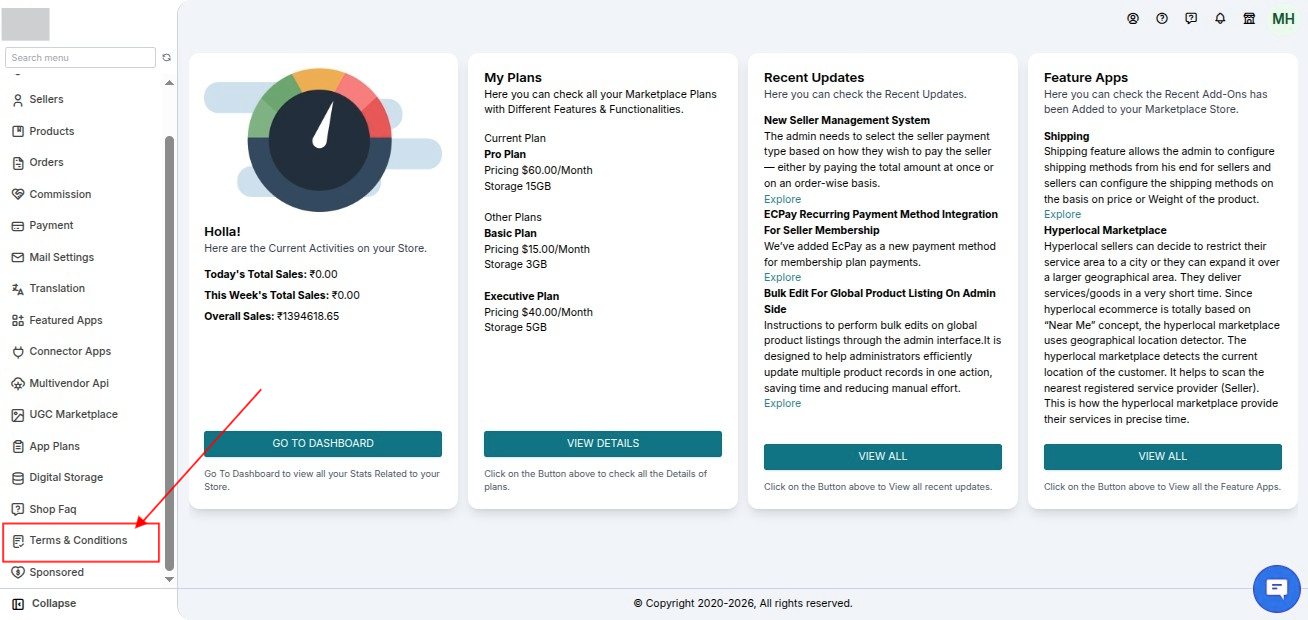
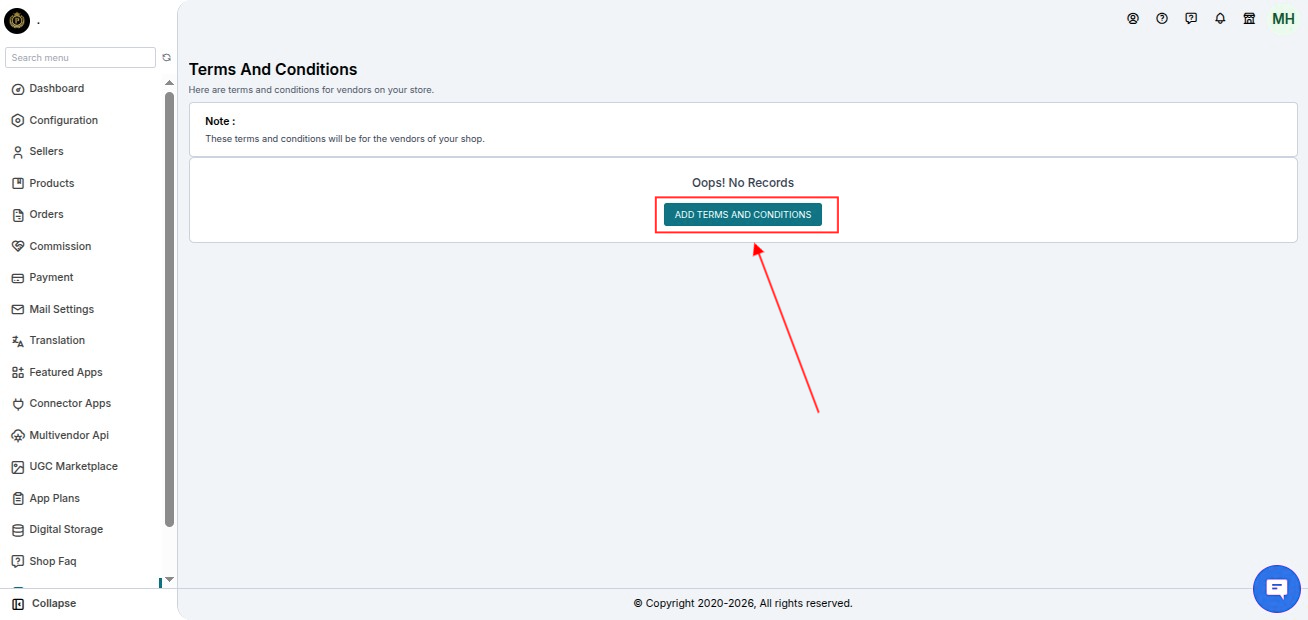
Visting the section, click the Add Terms & Conditions button to add seller terms & conditions.
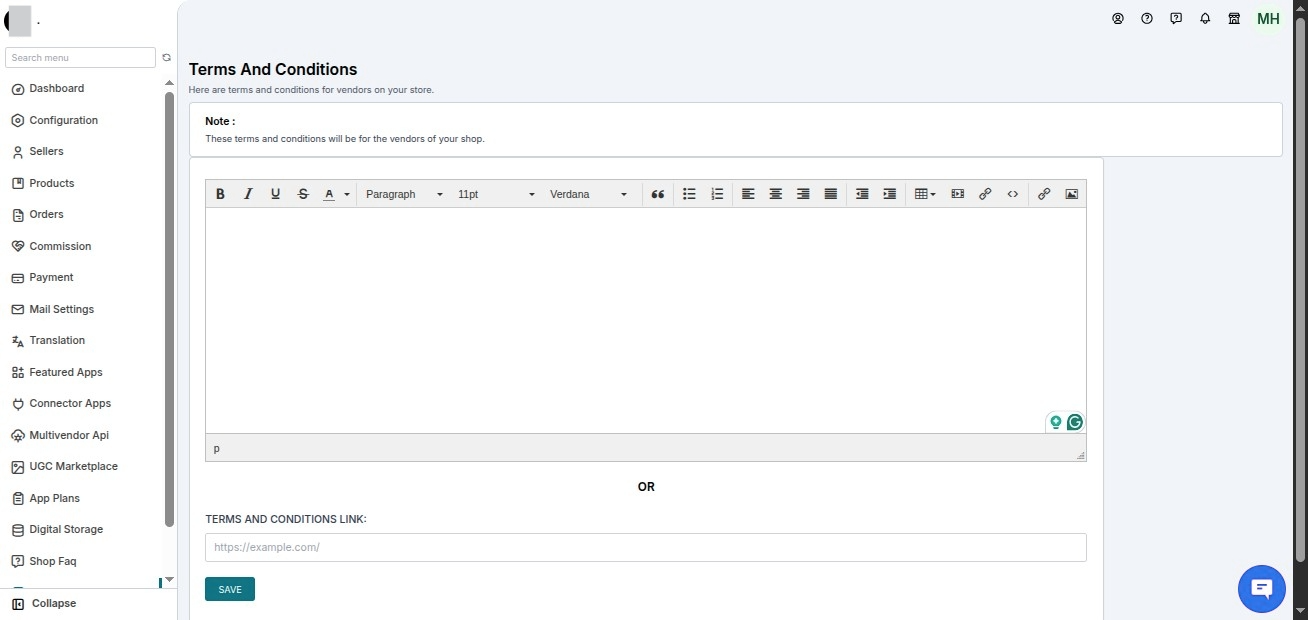
Clicking the Add Terms & Conditions button, you can add terms & conditions for sellers OR add a link to terms & conditions.
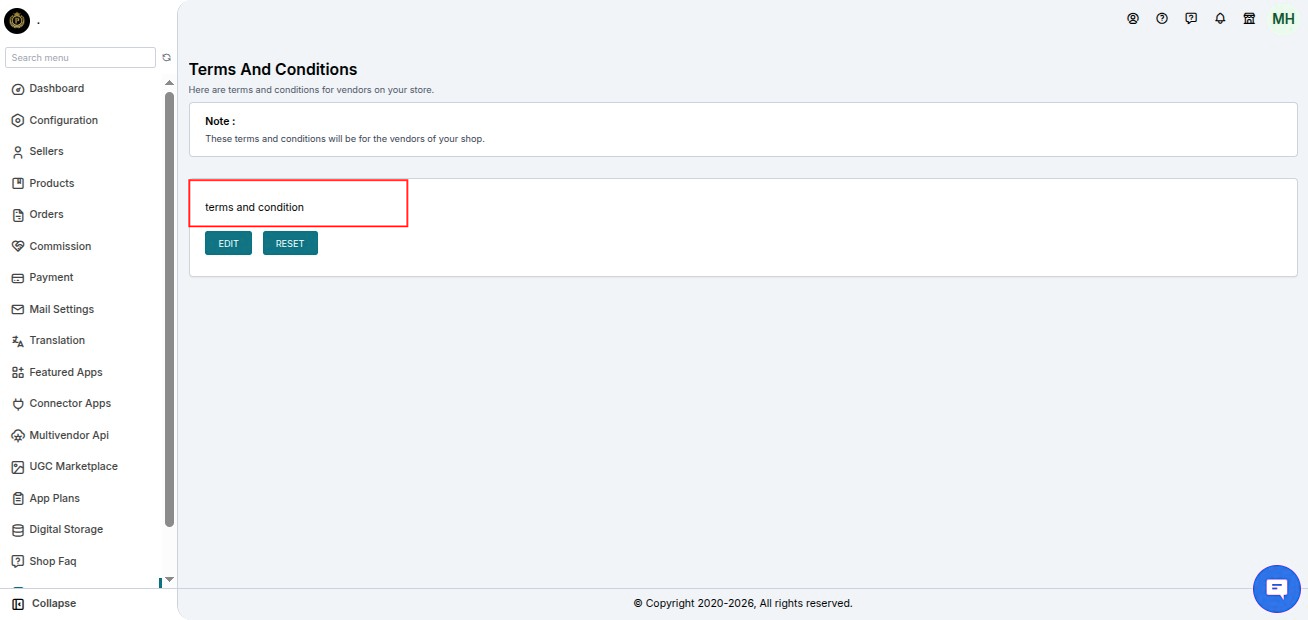
Further, you can edit the terms & conditions.
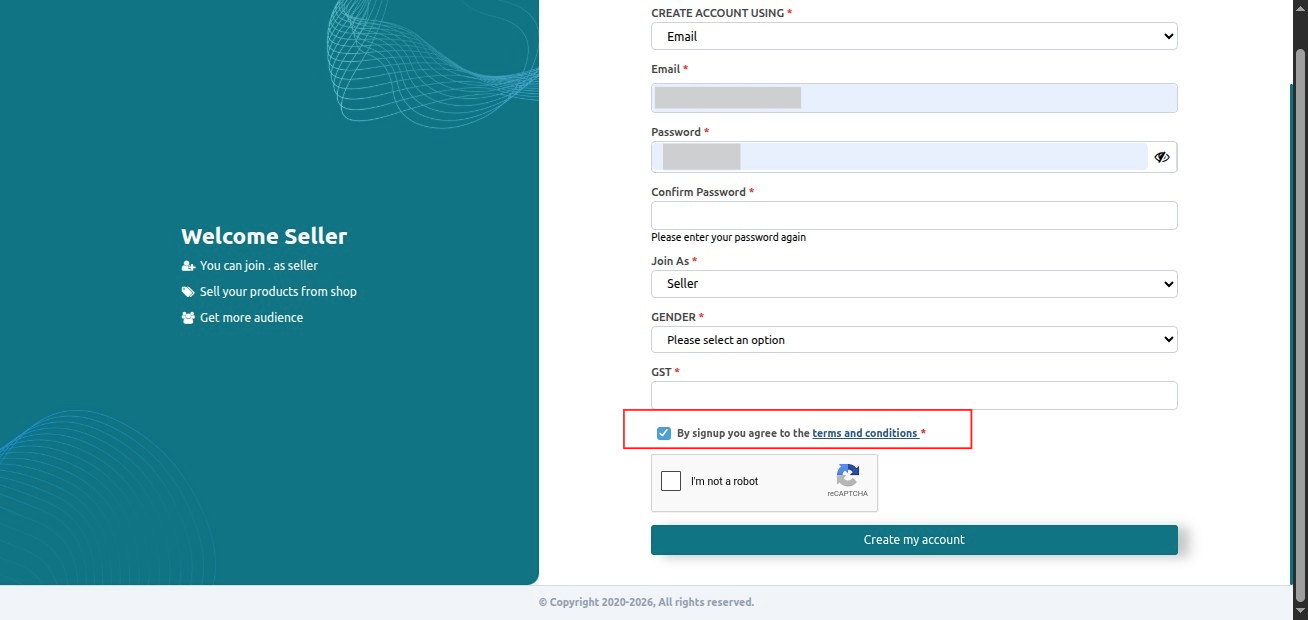
Now, the seller terms & conditions checkbox will appear on the seller Sign up form. A user needs to fill the Sign-up form to get registered as a seller to the marketplace.
You can add a seller signup menu on your store to let sellers get registered.
Update Seller Terms & Conditions
Note: You can access the following options only when you edit the existing seller Terms & Conditions. The system does not display these options when you add the Terms & Conditions for the first time.
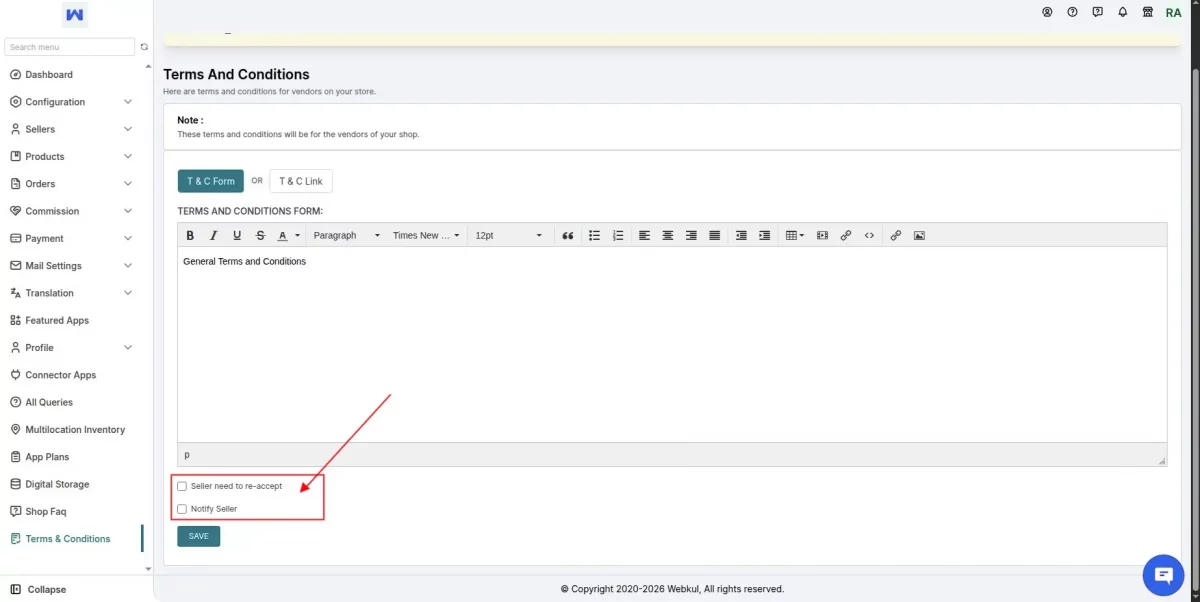
Whenever you update the seller Terms & Conditions, you can ask all existing sellers to review and accept the updated Terms & Conditions again.
Seller Need to Re-Accept
Enable the Seller Need to Re-Accept option and click Save.
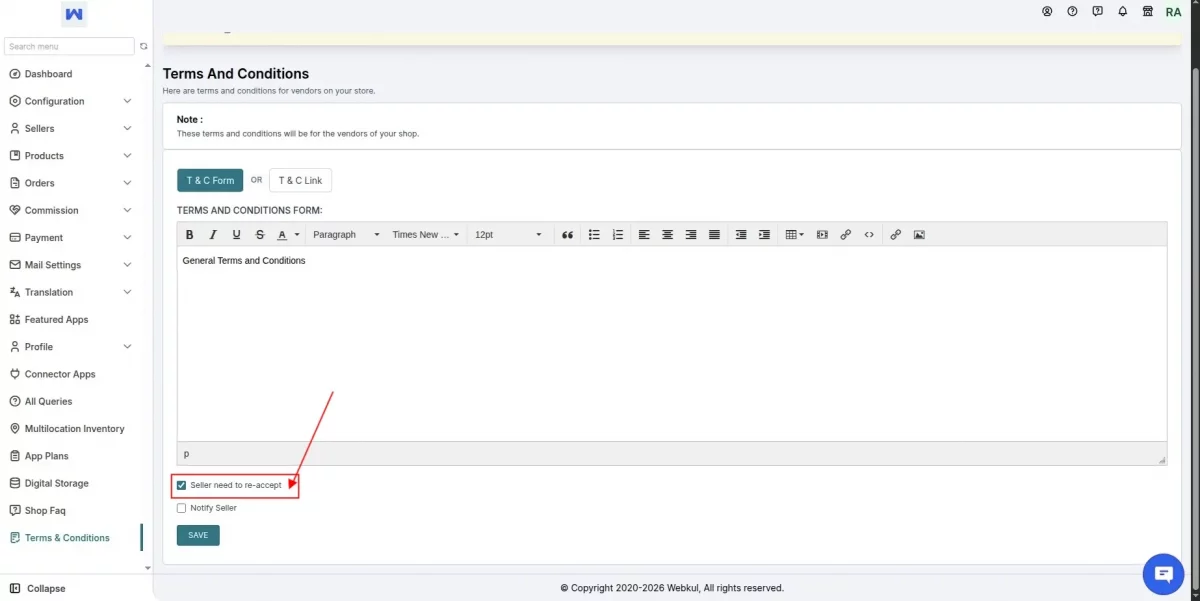
Once enabled:
- All existing sellers will be required to accept the updated Terms & Conditions again before continuing.
- The previous acceptance status of all sellers is reset automatically.
- After a seller accepts the updated Terms & Conditions, the acceptance status is updated again.
Notify Seller
After saving the updated Terms & Conditions, click the Notify Seller button to inform your sellers about the changes.
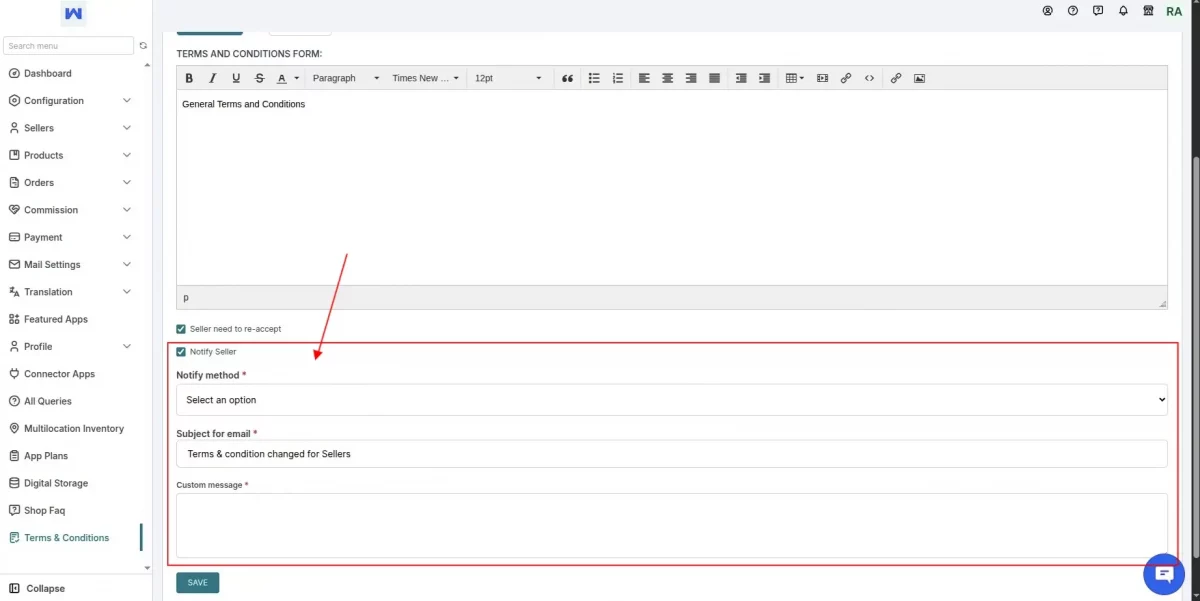
The admin gets two options:
Default Email
Select Default Email to send the predefined notification email to all sellers informing them that the Terms & Conditions have been updated and require acceptance.
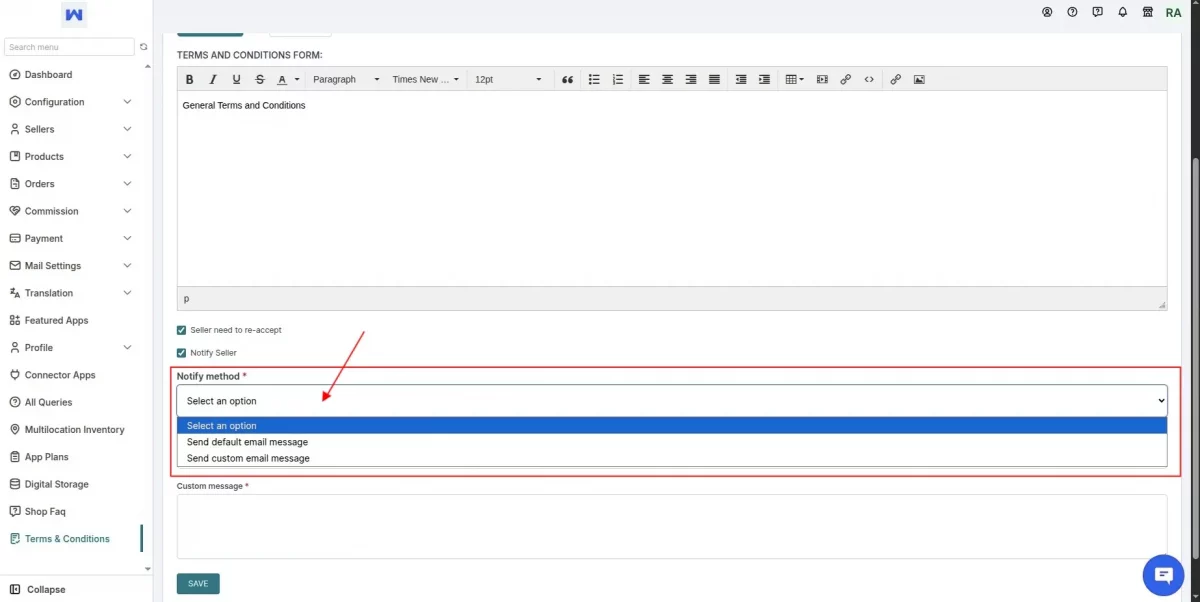
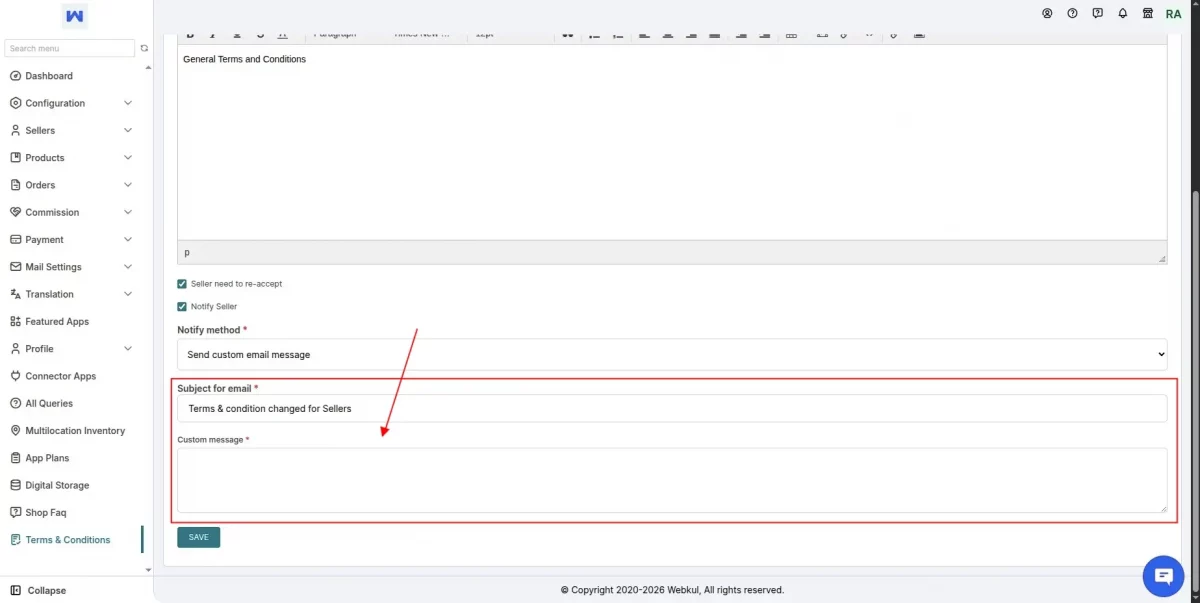
Custom Email Message
Select Custom Email Message if you want to write your own email content.
The custom email will be sent to all sellers with your personalized message regarding the updated Terms & Conditions.
Admin Accepting Seller Terms & Conditions
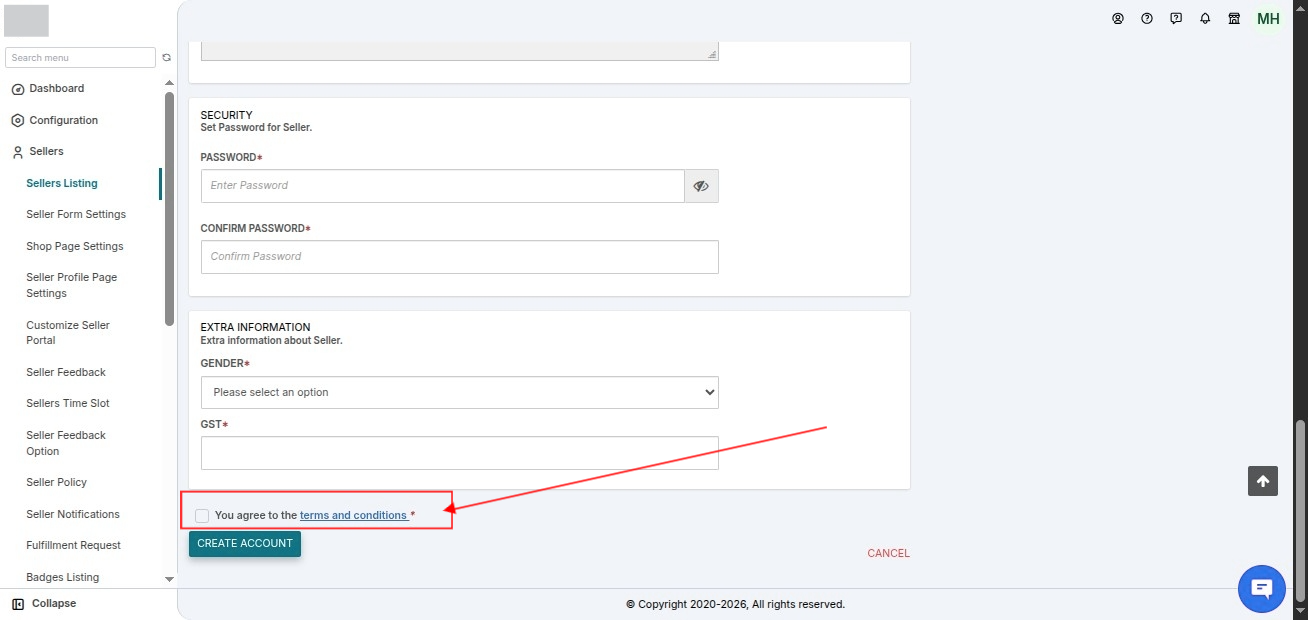
In case you are adding sellers from your admin panel, you will also get the option to accept terms & conditions on behalf of sellers.
To do that, visit the Multi-vendor admin panel>>Go to Sellers menu>>Add Seller and fill all the details>>
Enable the seller terms & conditions checkbox and click Create Account button.
SCHEDULE DEMO
Click here to Schedule the demo of Multivendor marketplace App for Shopify
Questions?
Furthermore, if you have any questions/issues then please raise a ticket at https://webkul.uvdesk.com/en/customer/create-ticket/
or drop a mail at support@webkul.com