

Appearance
User Guide for Fraud Analysis
In a Multivendor Marketplace App, the fraud analysis system operates in the backend to evaluate the risk associated with each customer order.
Utilizing data such as billing details, shipping addresses, IP geolocation, and transaction history, Shopify's algorithms swiftly assess the likelihood of fraud.
In the Multivendor app, the fraud analysis system flags high-risk orders and instantly notifies sellers through the marketplace app.
This action halts the fulfillment of the order until the admin has reviewed and confirmed its safety.
Note: When a product undergoes fraud analysis or encounters a fraud-related issue, the system sends an email to the seller,
Additionally, the system sends an email to the seller when it enables the fraud order restriction configuration.
When a customer orders through a store, the respective seller can handle fulfillment of their product through the Multivendor Marketplace App.
However, In the Multivendor Marketplace App, Admin allows Sellers to fulfill orders.
This means, that if the Admin prefers to handle order fulfillment instead of allowing Sellers to do so, they can do this in the Multivendor Marketplace.
The Admin can configure whether he wants his Sellers to fulfill orders or not.
To restrict sellers from fulfilling fraud orders, the administrator must first enable the tab. For this, the admin needs to navigate.
Multi-vendor Admin Panel>>Configurations>>Order Configuration
After enabling the tab, the admin Restrict Seller to fulfillment for fraud orders whose fraud risk is high.
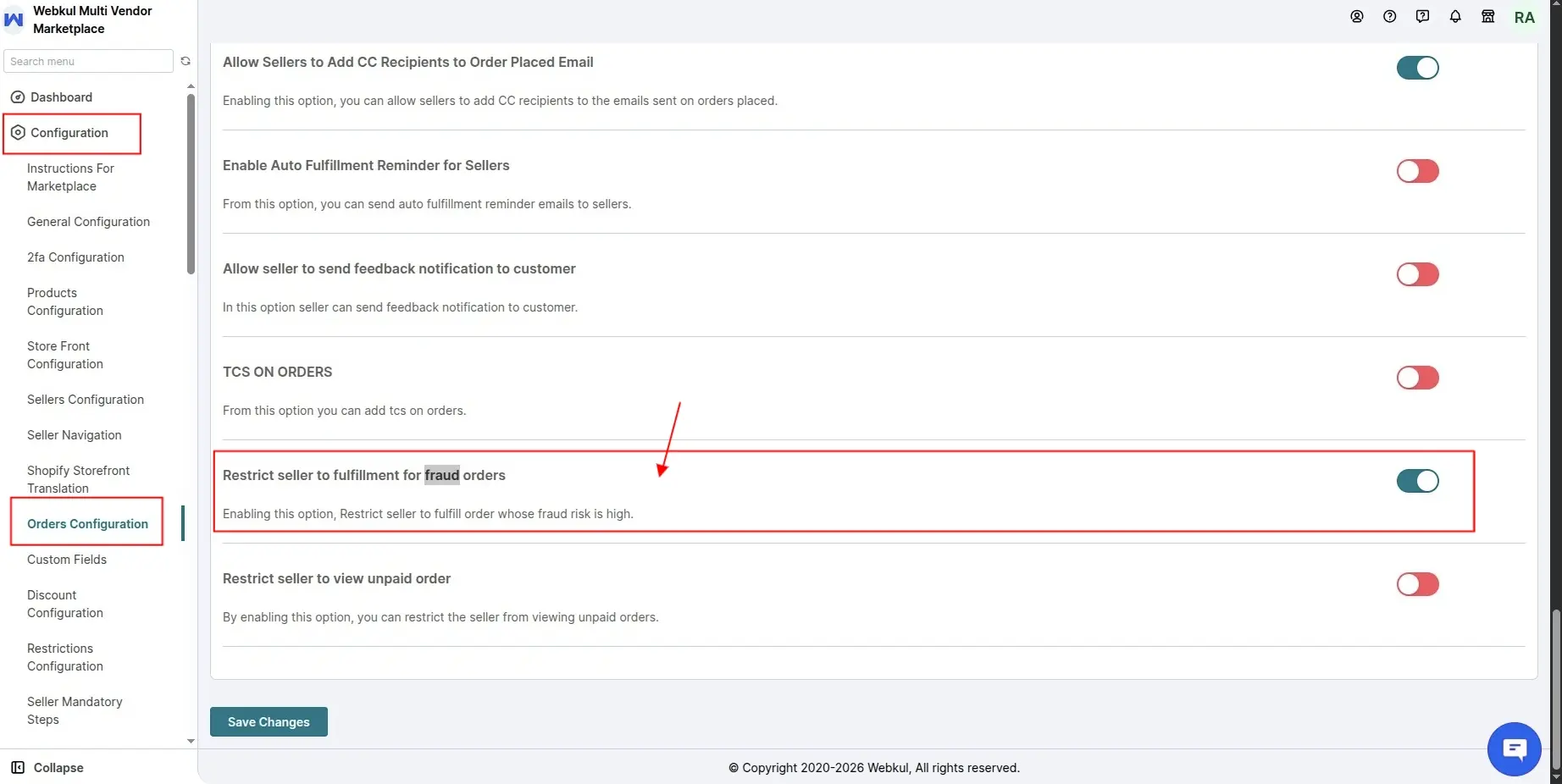
Note: If the "Restrict Seller to fulfillment for fraud orders" tab is enabled in the Multi-vendor Admin Panel,
the system prevents sellers from fulfilling any orders flagged for fraud until the admin marks them as safe.
ADMIN END
Go to the Multi-vendor Admin Panel>>Orders>>Order Listing
When an order is placed by a customer with a high-risk factor, It will display a warning on the order description page.
For reference image is given below:
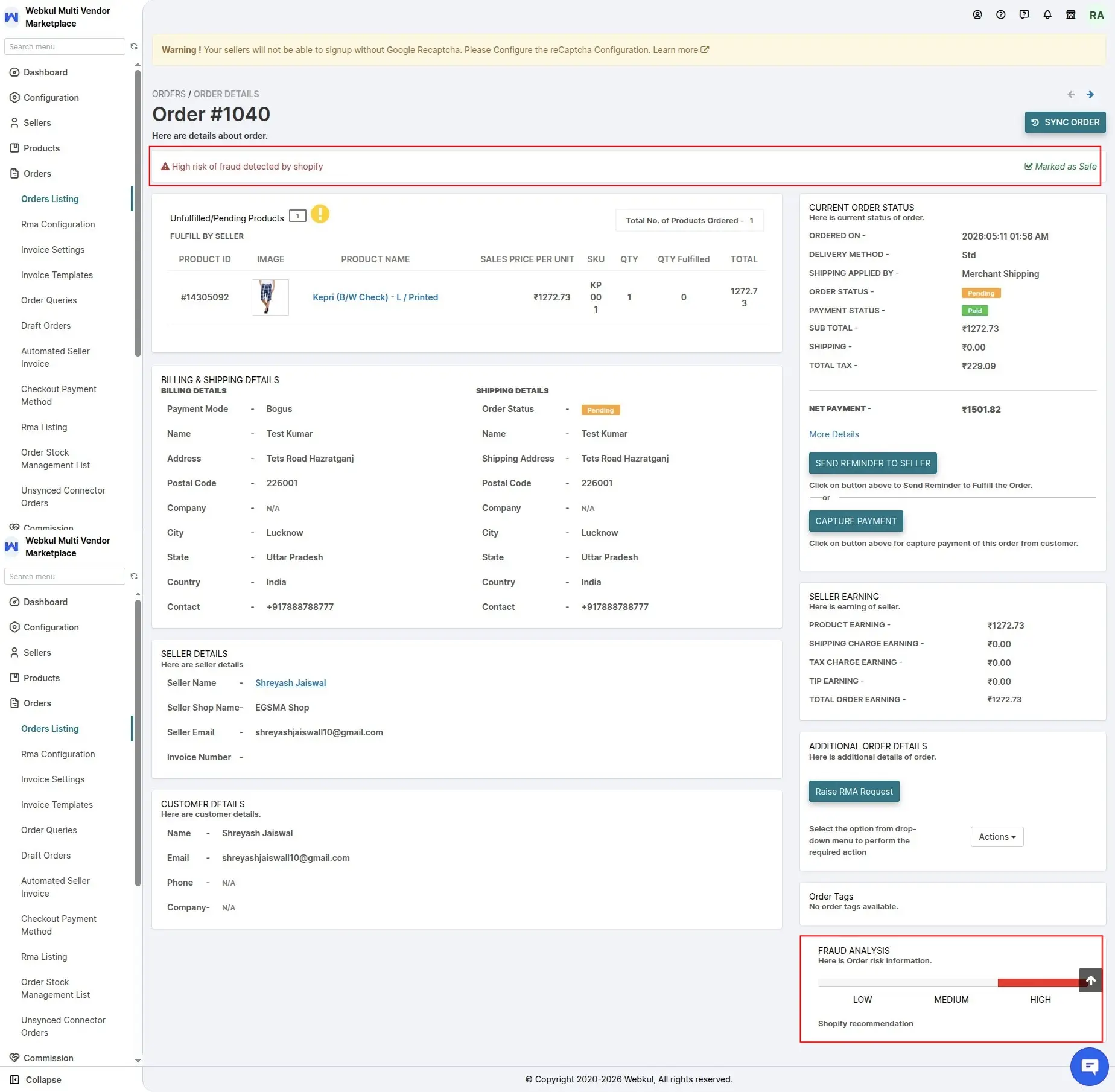
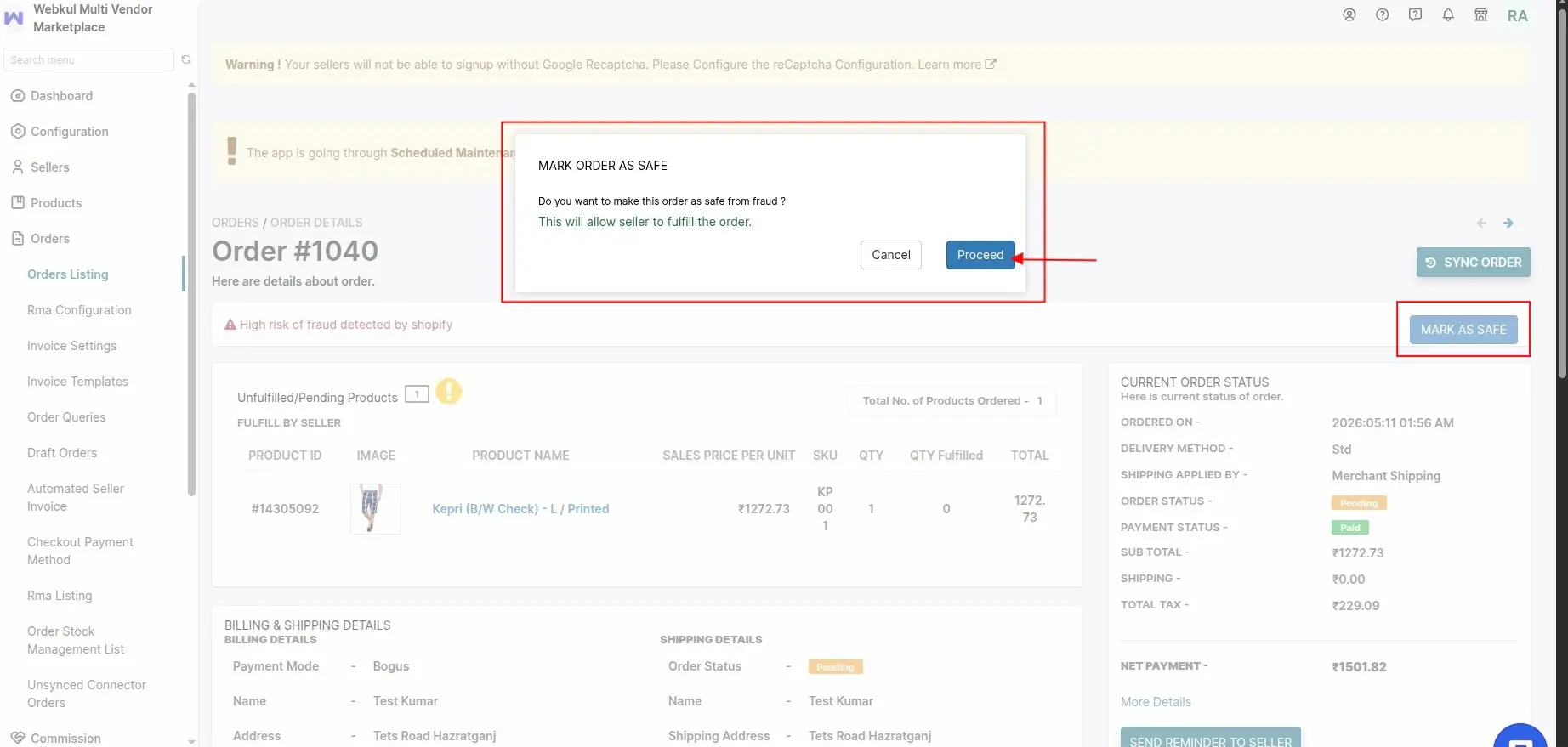
To make order safe Admin needs to click on the tab “MARK AS SAFE” and then Proceed.
SELLER END
Now we have to navigate this from the seller's end.
Multi-vendor seller Panel Dashboard>>Orders>>Order Listing
Also in the respective seller panel, It will display a warning on the order description page.
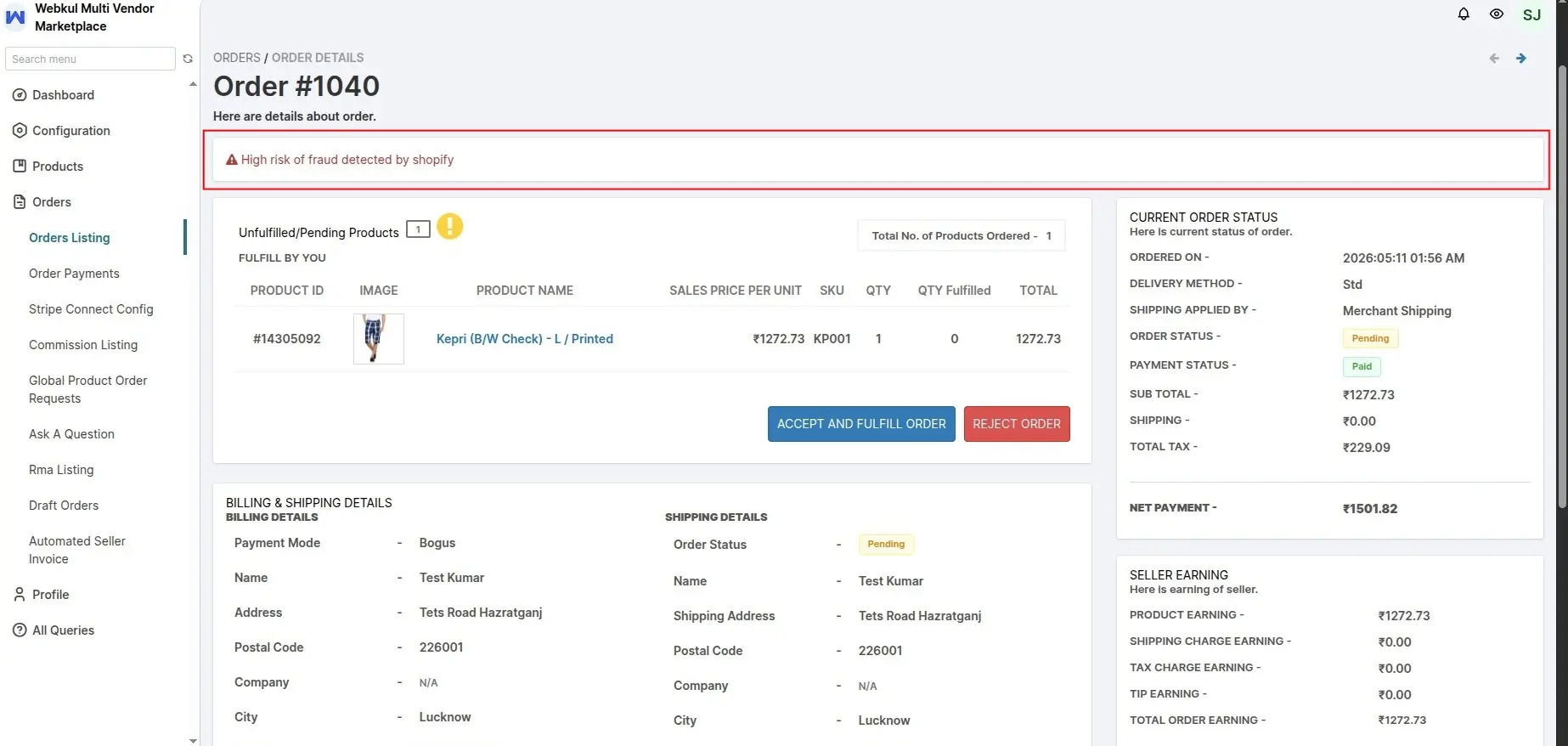
Now if a seller tries to fulfill the order the alert popup on the screen
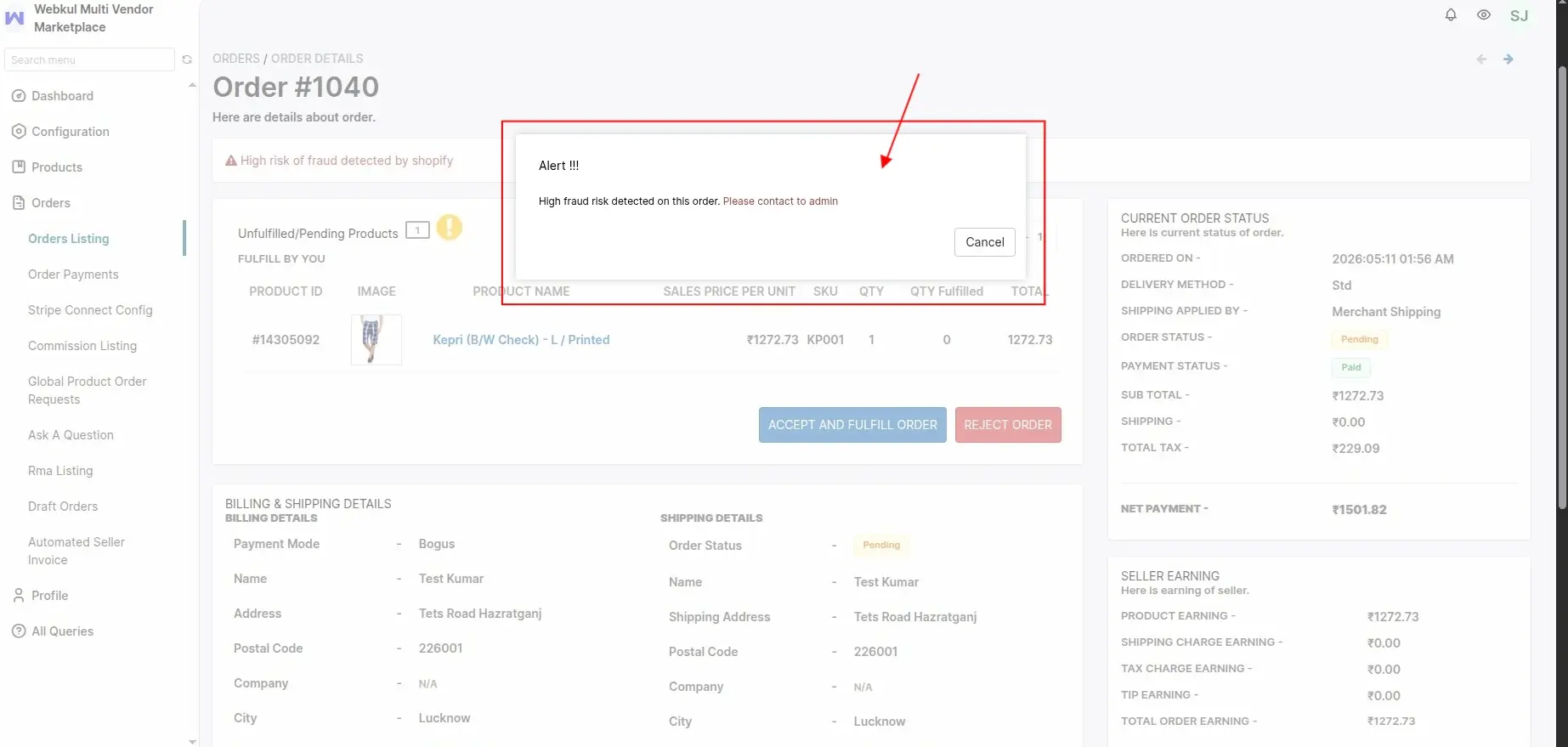
After Marked by the admin as safe the seller can fulfill the order.
SCHEDULE DEMO
Click here to Schedule the demo of Multivendor marketplace App for Shopify