

Appearance
User Guide for Collection Sync
By this time, you might have started using the Multivendor Marketplace App for Shopify and you would want to have your Collections from the Shopify Store to be synced to the App.
This manual will help you understand how you can create Collections in the App.
Please make sure that you have a fair idea about the type of Collections in Shopify, ie. Manual and Automatic/Smart Collections. You can also check the same from here.
Admin End
First, understand the Admin end from the App:
You need to restrict the collection from the "Restriction Configuration" so that you can manage the collections here from the App.
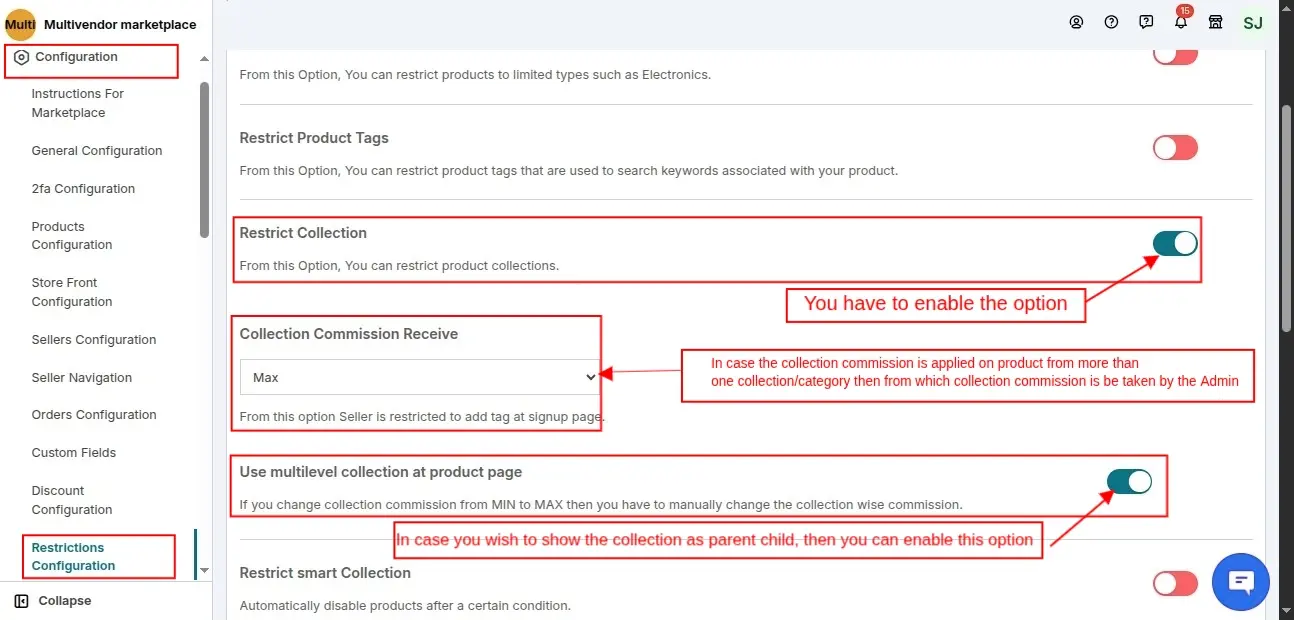
Now once this is done, you will now have the "Collection" menu under the Products menu in the App:

You can use the "Sync" button to sync all the Collections from the Shopify Store to the Multivendor App.
Once synced, Admin can even enable/disable the Collection from the App. If the collection is enabled from the App then
NOTE: Please note that the list on the collection page will only show the "manual collections" listed. Although the smart collections are also synced to the App.
Also, make a note that the Collection Commission is only applied to manual collections only.
The Admin can view the Smart Collections from here on the Add/Edit Product Page:

Admin can restrict whether the collections can be shown to the seller or not, from the "restriction configuration" menu:

Seller End
The Collections are now synced to the app, now check how things will appear at the seller end:
The seller can view the manual collection on the "Add product" page:

The seller can view the smart collection either as shown in the above screenshot on the add product page or can view the smart collection from the menu "smart collection":

Shopify Multivendor Marketplace Demo
Check out: https://egsma.io/shopify-multivendor-marketplace/