

Appearance
User Guide for Affiliate-referral Seller
E-commerce companies can partner with nonprofit organizations or affiliates, such as NGOs and churches, by donating a percentage of earnings through the Affiliate/Referral Seller feature App.
This can be done via fixed profit percentages, donations per product sold, or special campaigns.
Such partnerships not only provide crucial funding for nonprofits but also enhance the e-commerce brand's image, boost customer loyalty, and showcase social responsibility.
Ultimately, they foster a positive community impact while strengthening customer relationships.
We’ll explore how e-commerce businesses can support nonprofit organizations or affiliates, such as churches or NGOs.
This can be done by contributing a portion of their earnings through the Affiliate/Referral Sellers feature in the Multivendor Marketplace app.
Enabling this feature allows businesses to easily share a percentage of their revenue with these causes.
Once activated, nonprofit organizations or affiliates will have access to a separate panel where they can track affiliate orders, commissions, and order payments.
To enable this app, go to the Multivendor Marketplace Admin Panel, hover over the three dots, and select "Featured Apps." From there, you can search for and activate the Affiliate/Referral Seller app.

Once you activate the featured app, you'll need to approve an additional charge of 10 USD per month.
This fee will be added to the existing Multivendor Marketplace app charges, allowing you to access and use the app's features.
Admin Panel
Once the app is activated, you can easily configure it by navigating to the "Configuration" menu and then selecting "Affiliate/Referral Configuration."

You can enable the option for sellers to sign up as affiliates or referrers within the marketplace.
This feature allows sellers to promote products and earn commissions on sales generated through their referrals, increasing their earning potential and driving more traffic to the platform.

You can share a percentage of your earnings or commission with a nonprofit organization or affiliates, based on your preferred setting.
Affiliate Seller Panel
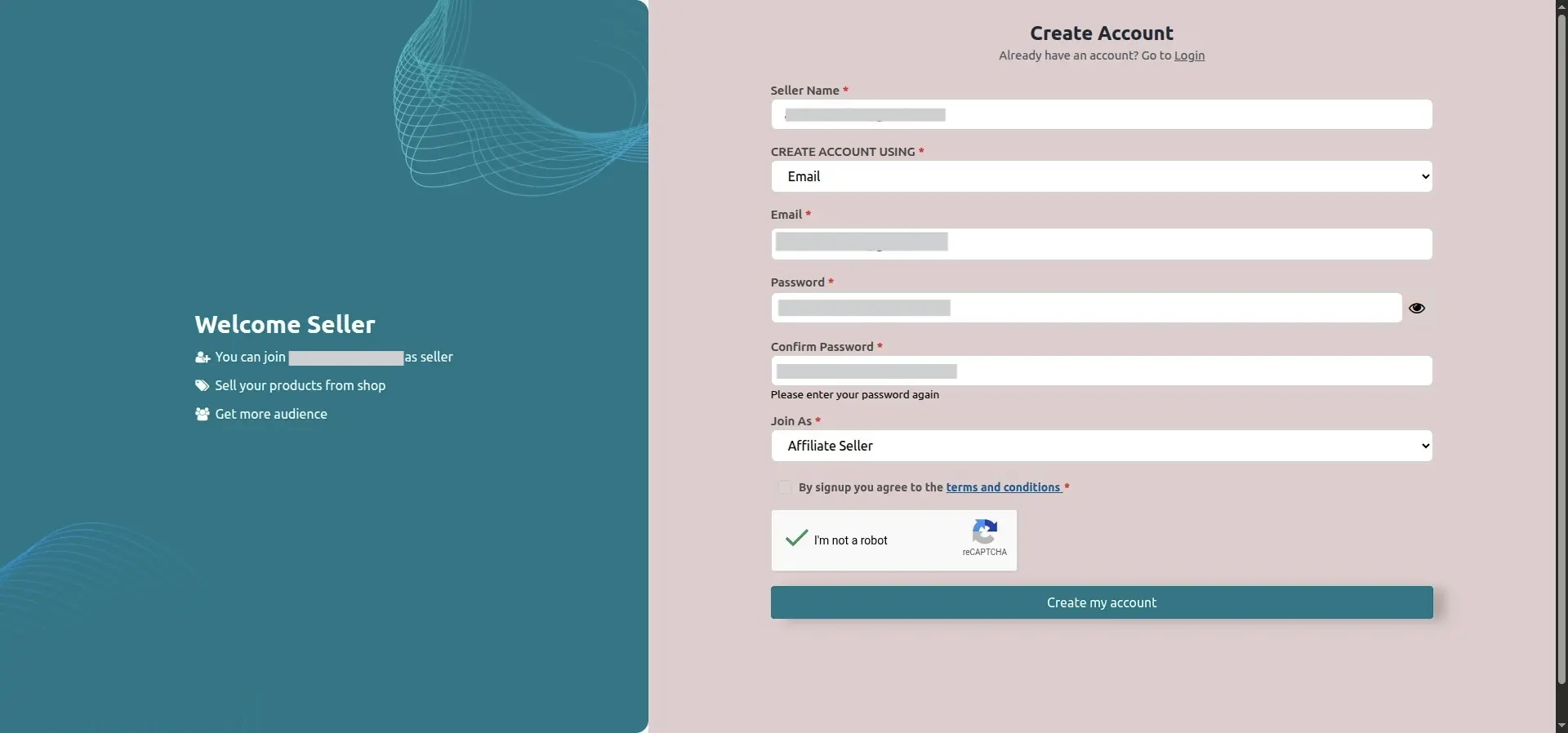
Nonprofit organizations or affiliates can register through the seller signup page by selecting "Join as Affiliate Seller" from the dropdown menu.
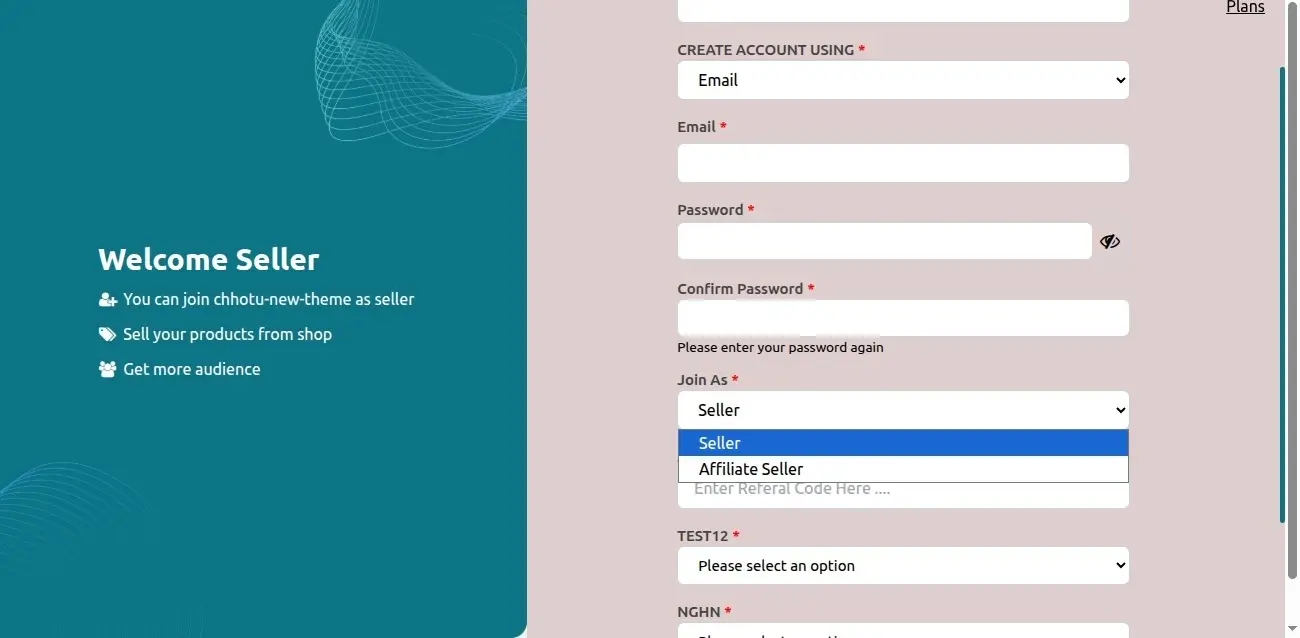
After completing the signup, they will have access to their dedicated panel, where they can track affiliate orders, monitor commissions, and manage payment details.

Profile
They can manage their account details, update payment information, and oversee their affiliate seller details from the profile section.
My account
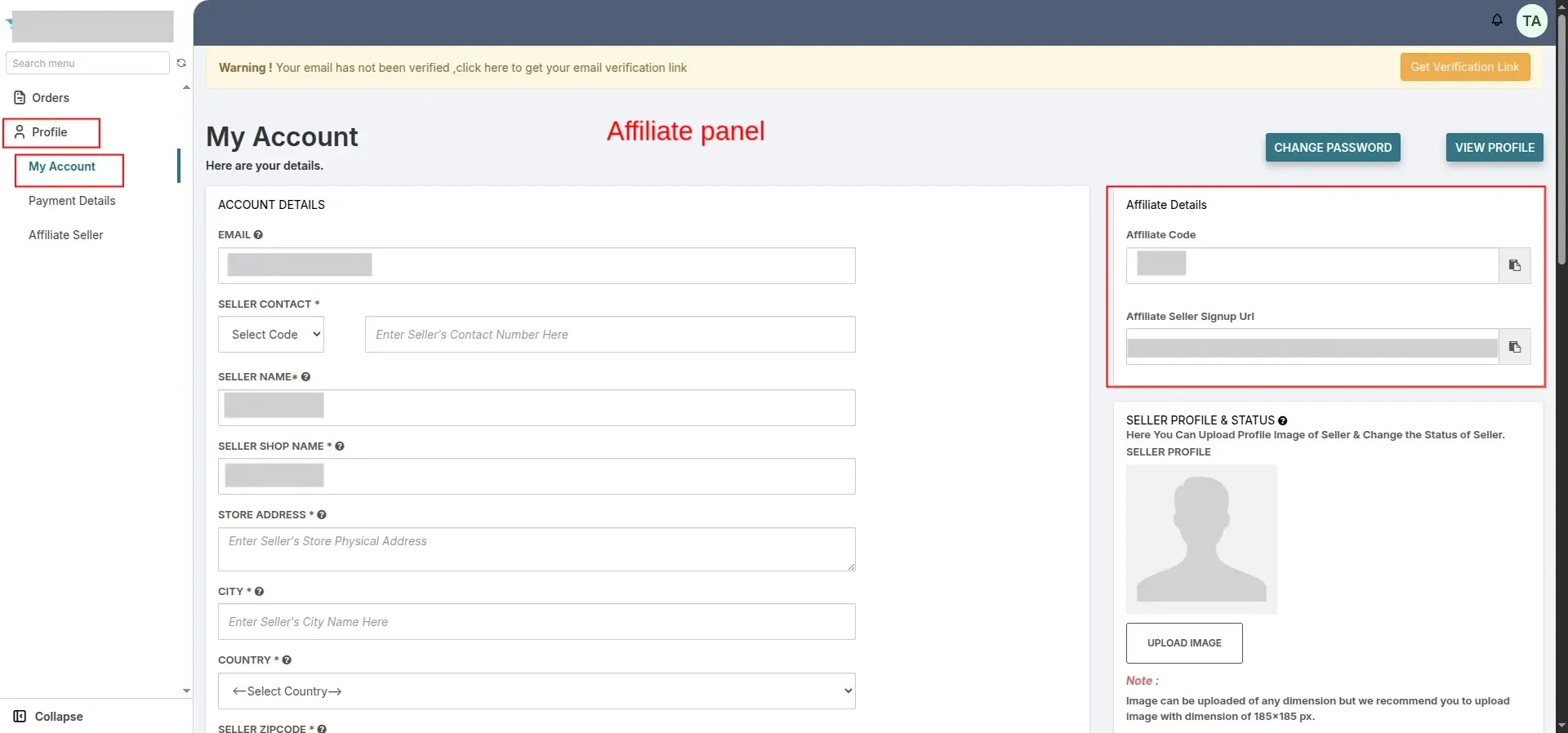
The "My Account" section under their profile allows them to manage their account details. This includes important affiliate information, such as their affiliate code and affiliate seller signup URL.
From this section, they can easily share their affiliate code with sellers who wish to partner with them.
The admin can allocate a portion of the earnings from sales made through the affiliate code used by sellers in their profiles and product listings.

Payment Details
Nonprofit organizations or affiliates can select and update their preferred payment details directly from their panel under the "Profile" and "Payment Details" sections.

They can choose from any of the following payment methods to receive payments from the admin.
- Paypal
- Bank Wire Transfer
- Internet Banking
- Payfast
- Other
Affiliate Seller
They can track sellers using their affiliate code in the "Affiliate Seller" section under the profile in their panel.

By clicking the "View in Store" button under the Action tab, they can access all the products and profiles of the respective seller.
Seller Panel
Sellers can add a nonprofit organization or affiliate’s referral code in the 'Affiliate Details' section under 'My Account'.

They can specify the commission rate charged by the admin on their products. Based on this rate, the admin can allocate a portion to the nonprofit or affiliate organization.
Payment
When you earn a commission through an affiliate's referral code, you'll share the agreed percentage with the nonprofit organizations or affiliate.
This share comes from the earnings generated by the specific seller whose affiliate code was used.
You can view and manage seller payments by navigating to the Admin Panel.
From there, they can go to Payment > Seller Payment to see the payment details, send payments to affiliate sellers, and update the payment status.

By clicking the "View" button, you can easily access and manage the payment details of a specific seller.
Afterward, you can select the enabled payment method to process the payment to the seller. Additionally, you also have the option to export the transaction details for record-keeping.
Refer and Earn Functionality for Affiliates
Introduction
The Refer and Earn Functionality allows affiliates to earn commissions whenever they successfully refer sellers to the marketplace. The affiliate commission is calculated based on the membership commission configuration set by the admin. The commission can be configured as either a fixed amount or a percentage.
Admin Configuration
To use this functionality, the admin must first enable the Seller Membership feature.
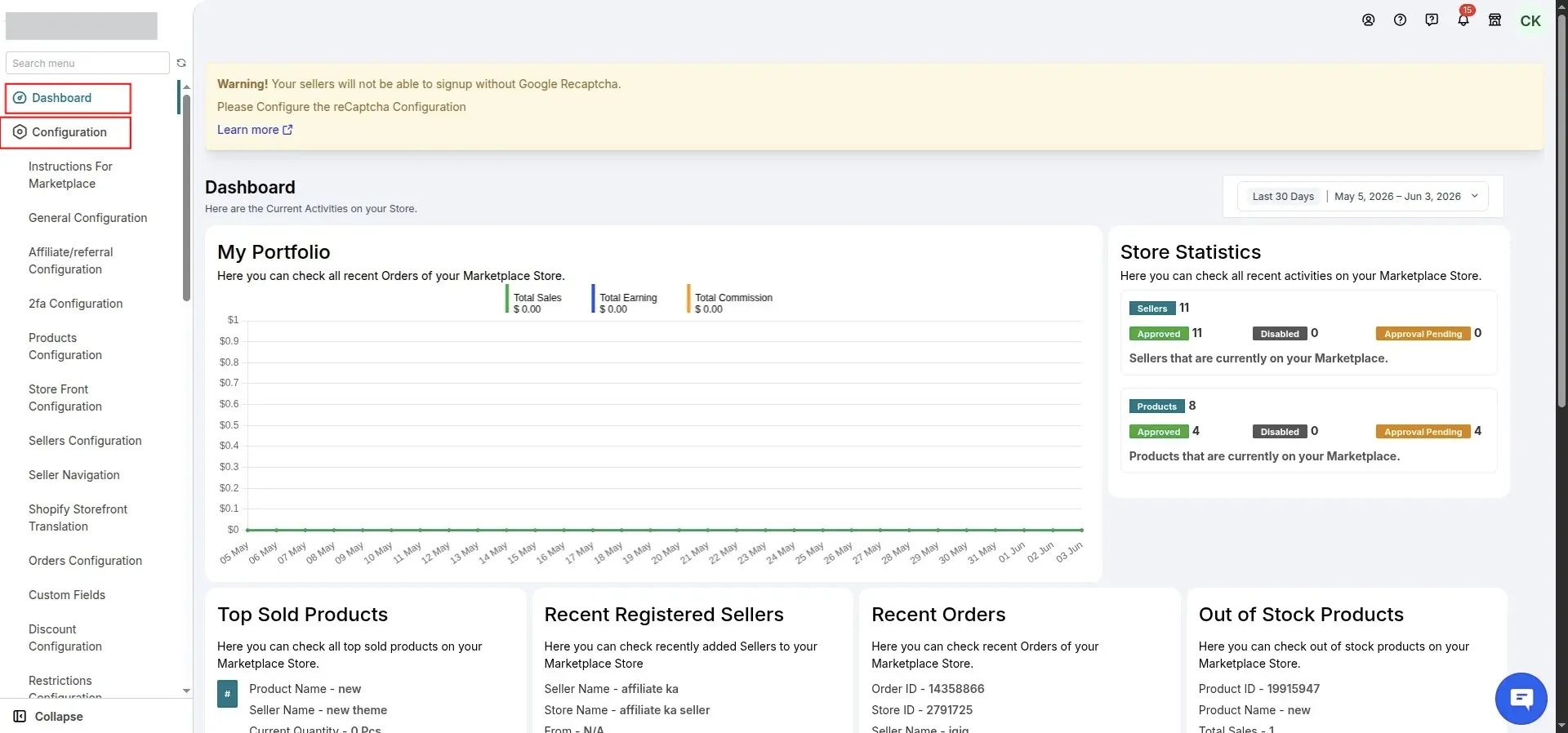
Navigate to:
Multivendor Marketplace Admin Panel → Configuration → Membership Configuration
From this section, the admin can configure the affiliate membership commission type as either:
- Fixed
- Percentage
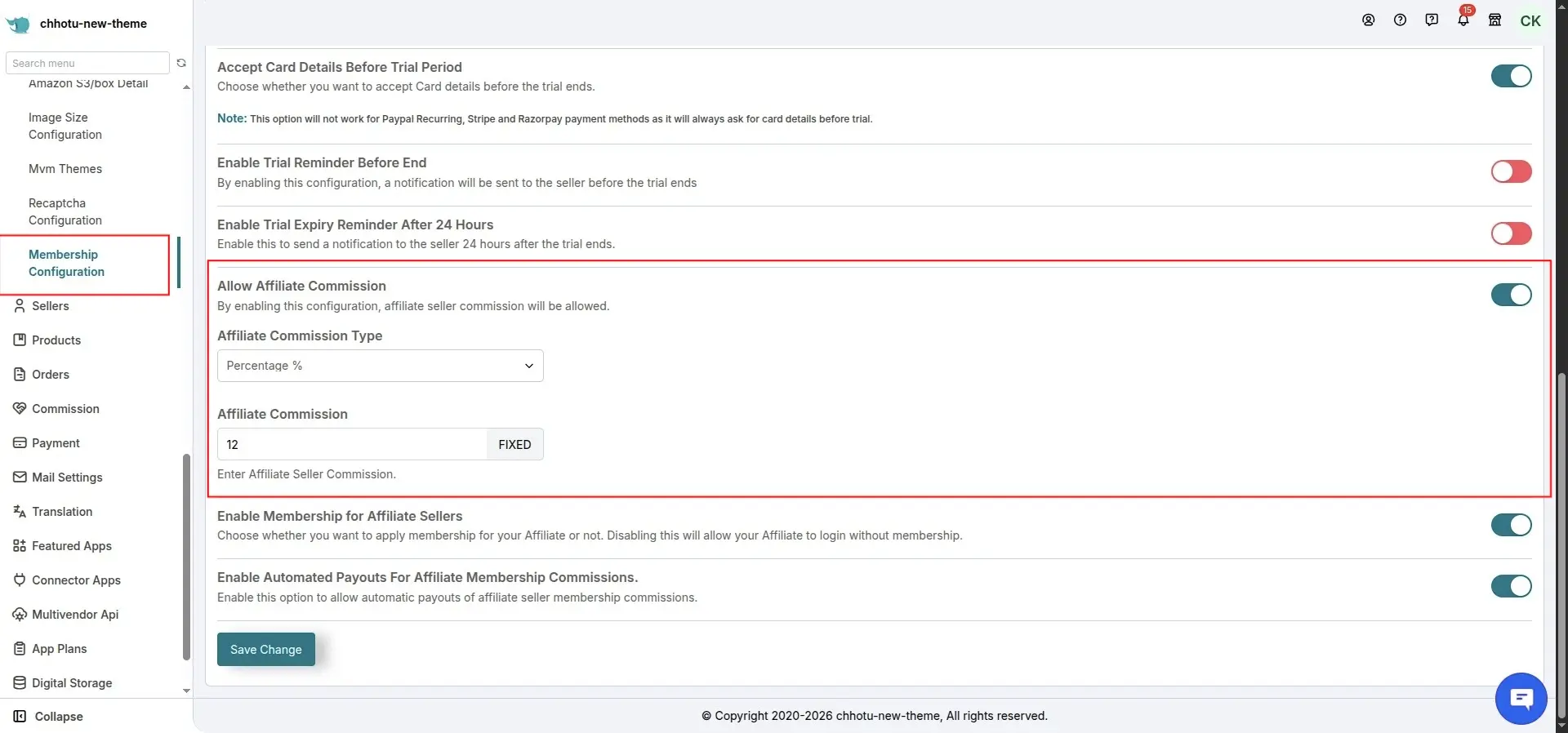
Membership Configuration Options
Enable Membership for Affiliate Sellers
This configuration determines whether affiliates are required to purchase a membership plan.
- Enabled: Affiliates must purchase a membership plan before accessing the marketplace.
- Disabled: Affiliates can register and access the marketplace without purchasing a membership plan.
Enable Automated Payouts For Affiliate Membership Commissions
This option allows affiliate membership commissions to be paid automatically through PayPal.
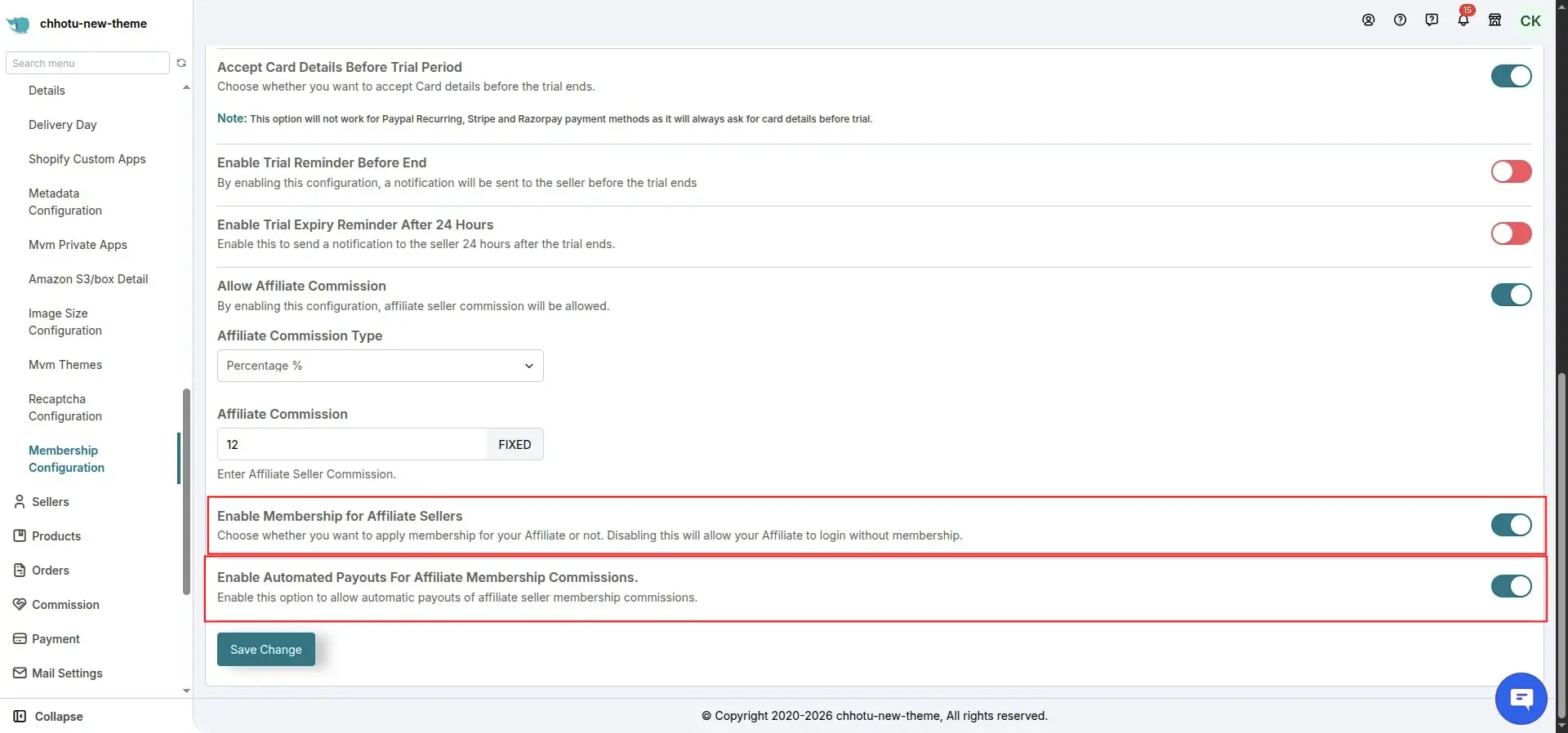
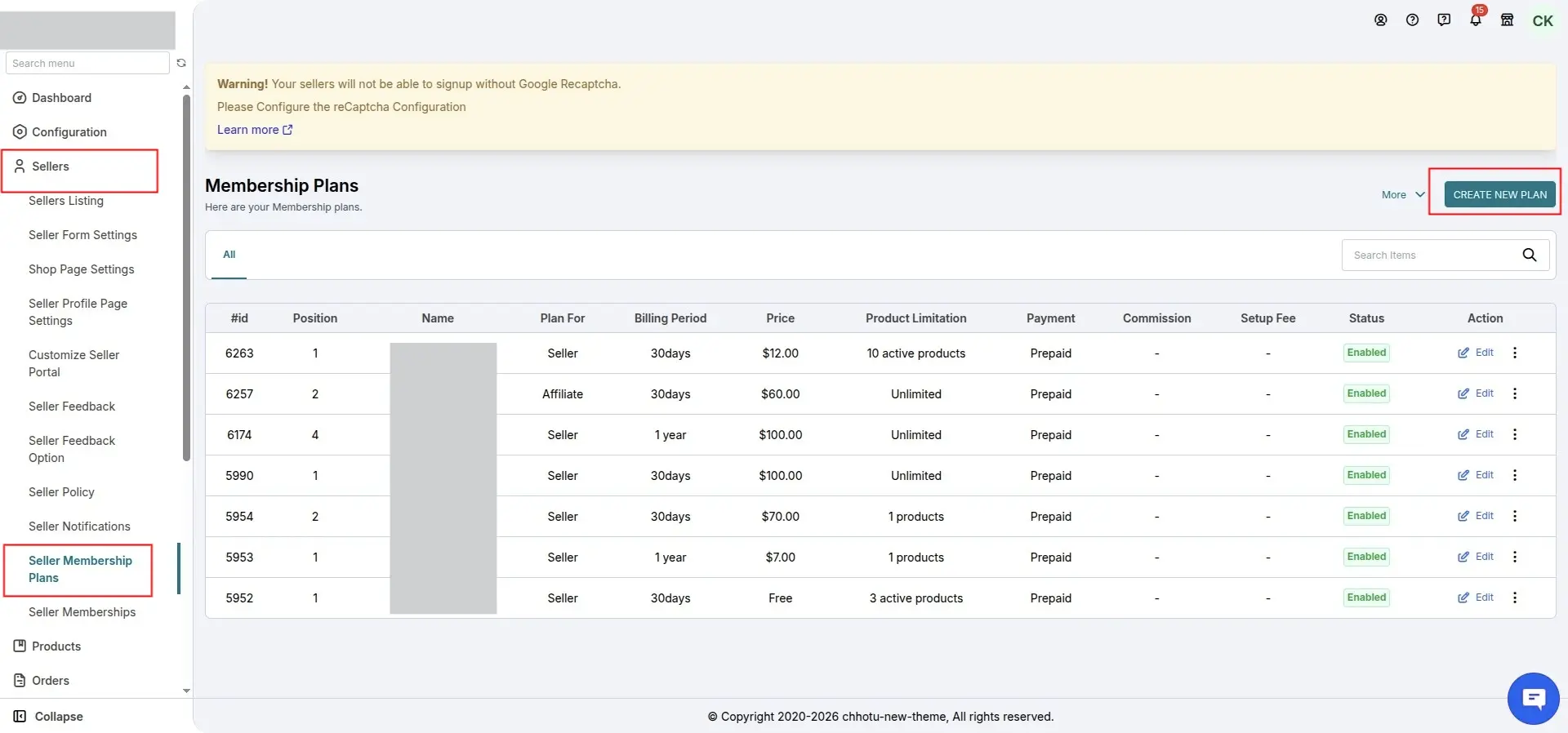
Membership Plan Configuration
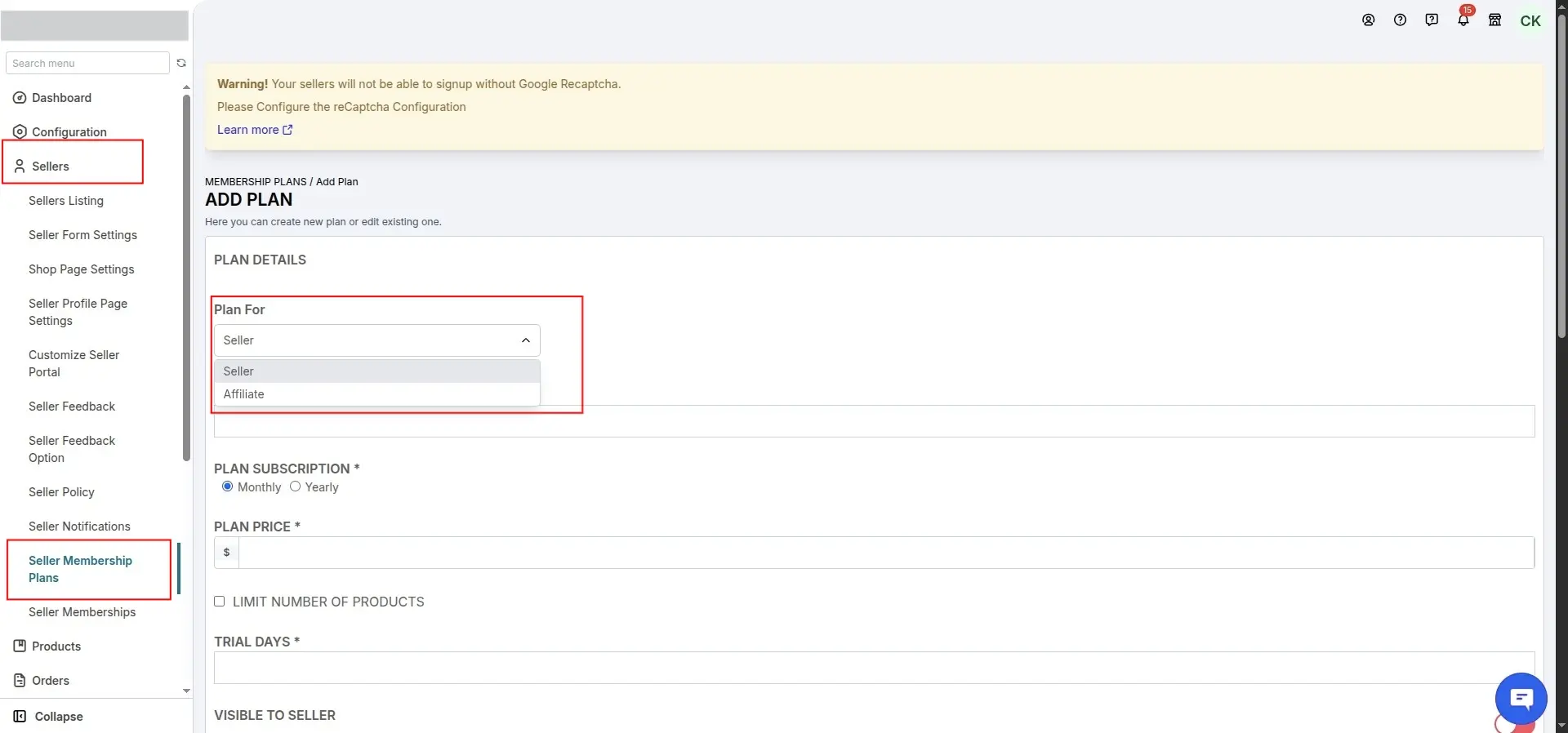
While creating a membership plan, the admin can specify whether the plan is intended for:
- Sellers
- Affiliates
Membership-wise Affiliate Commission
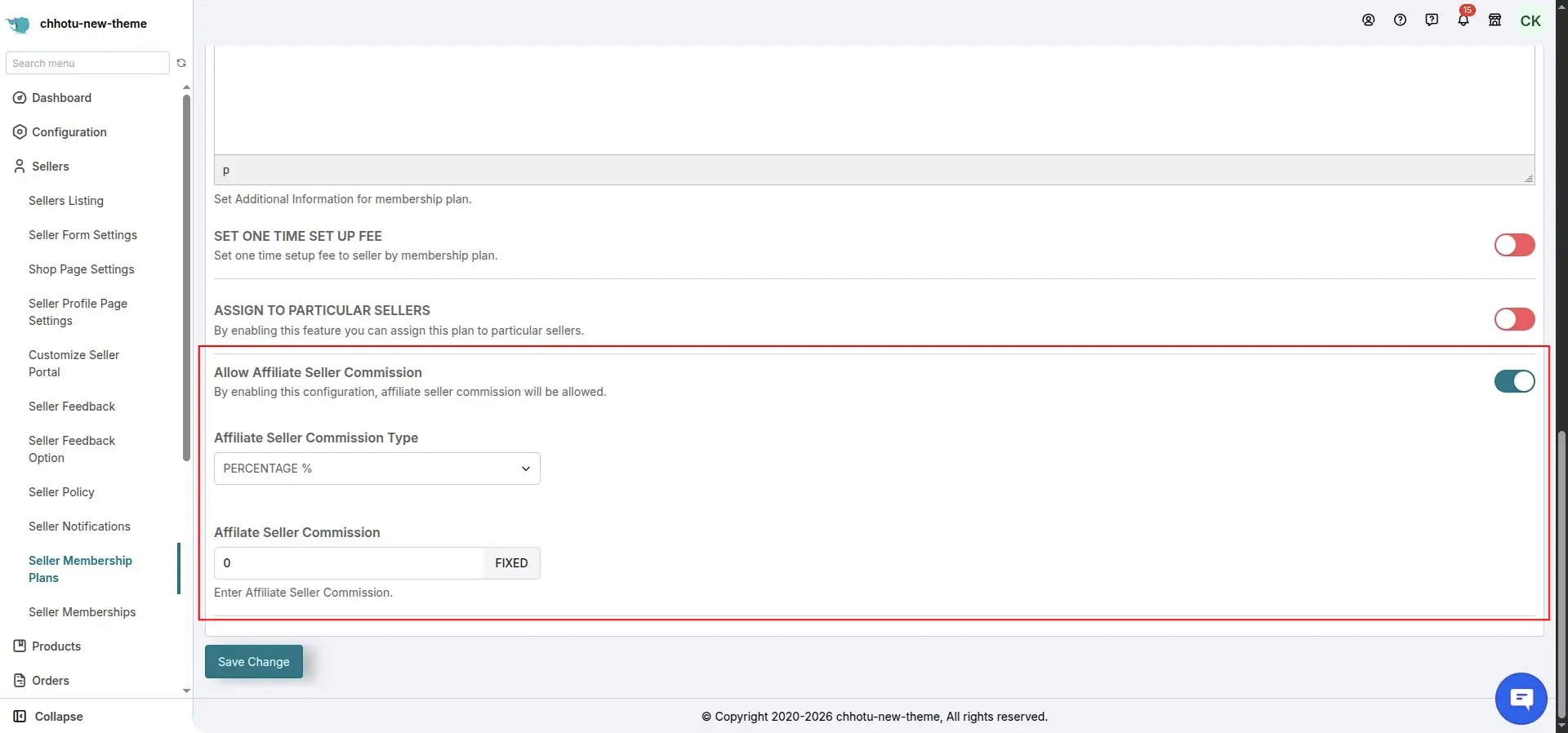
When creating a Seller Membership Plan, the admin can configure membership-wise affiliate commission values. These commissions are awarded to affiliates whenever a referred seller purchases the respective membership plan.
Automatic PayPal Payout Setup
Click here for instructions to set up automatic payouts for sellers and affiliates using PayPal.
Affiliate Workflow
Affiliate Registration
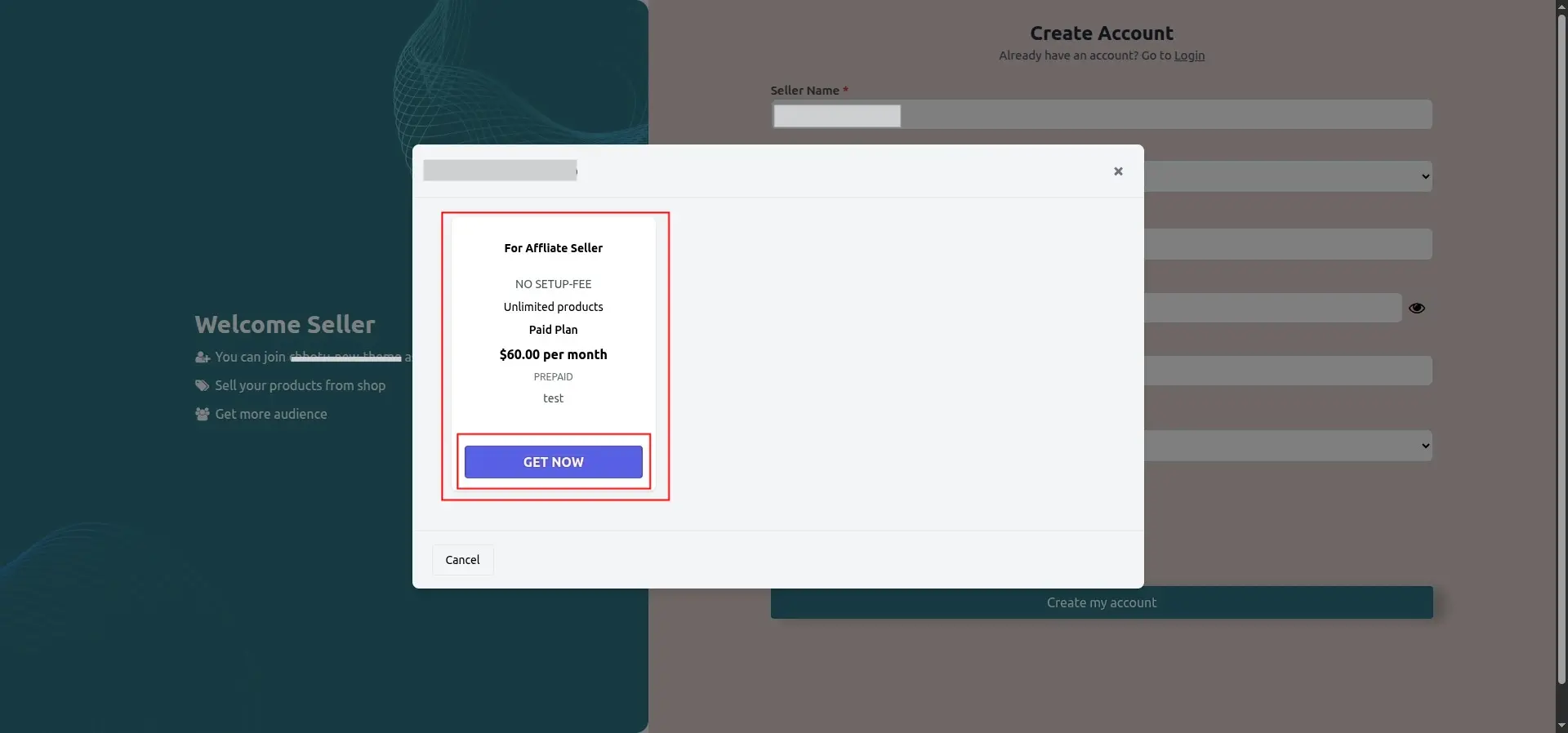
During affiliate registration, the affiliate must select one of the membership plans created by the admin.
PayPal Payout Configuration
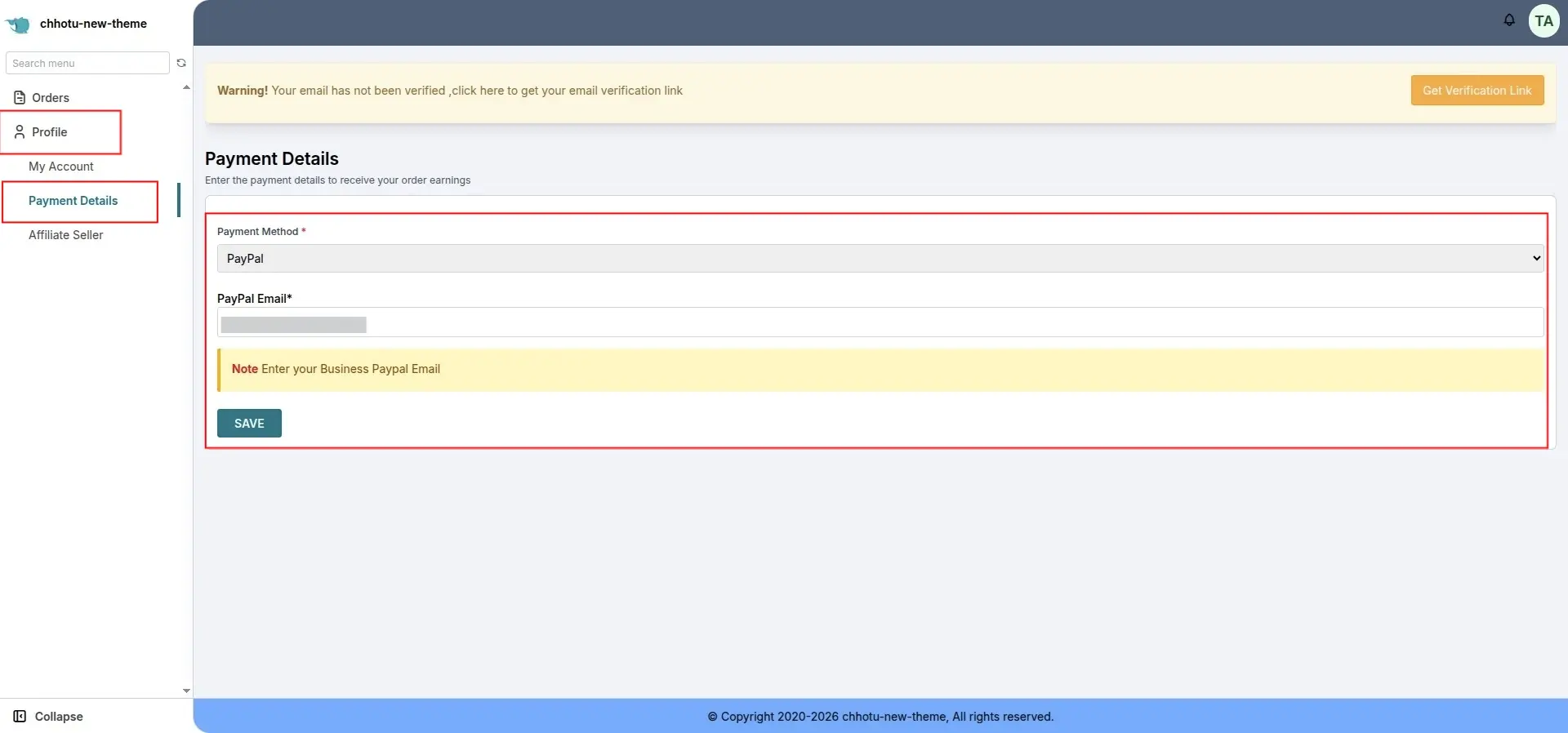
To receive commission payouts automatically through PayPal, the affiliate must:
- Select PayPal as the payout method
- Enter their PayPal Business Email Address
Sharing Affiliate Referral Details
After registration, affiliates can share either:
- Affiliate Code
- Affiliate Seller Signup URL
These options are available from the My Account section.
Viewing Affiliate Commissions
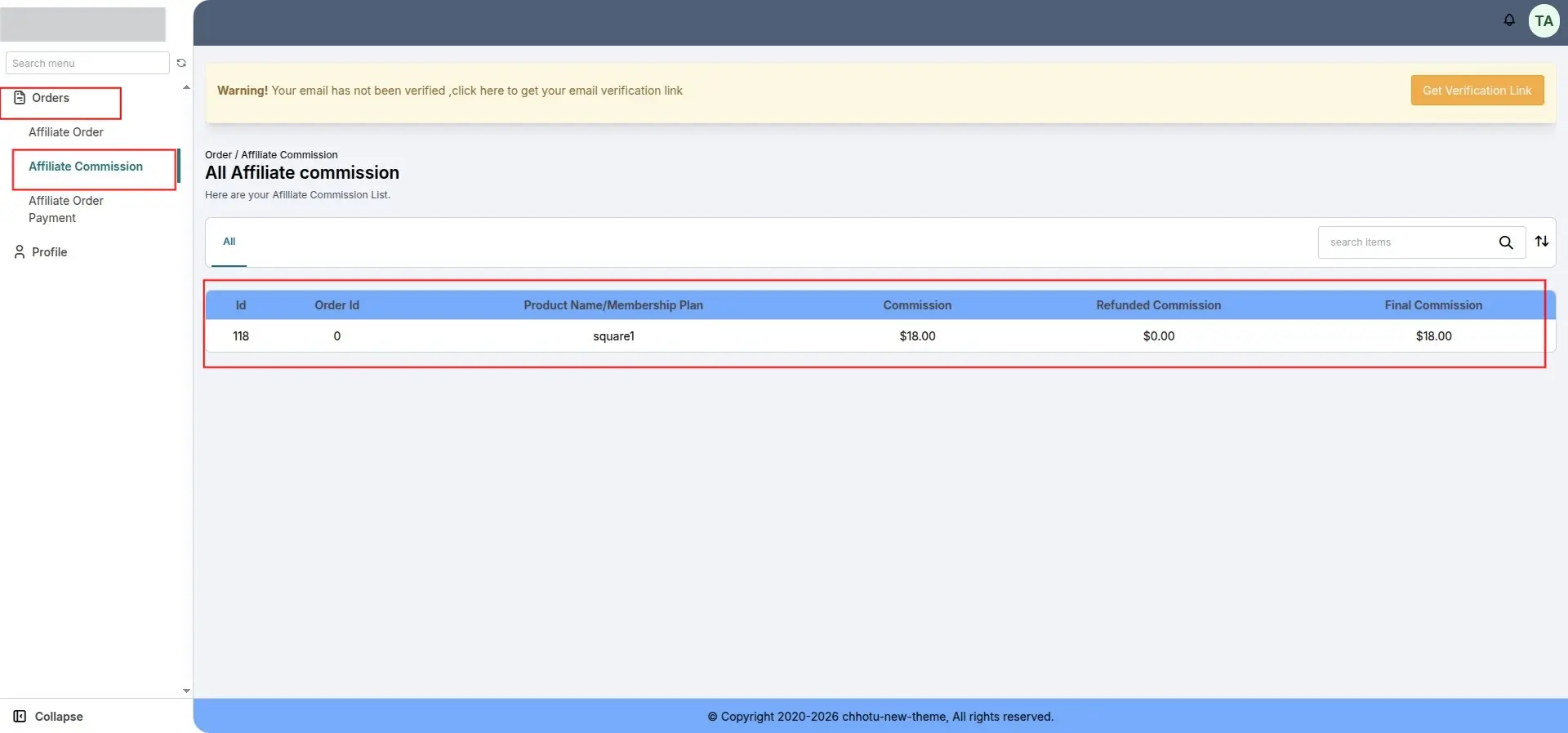
Affiliates can monitor and review their earned commissions from the Affiliate Commission section in their panel. Whenever a seller signs up or joins the marketplace using an affiliate seller’s referral code, the affiliate seller will receive the commission configured by the admin.
Seller Workflow
Seller Registration Through Affiliate
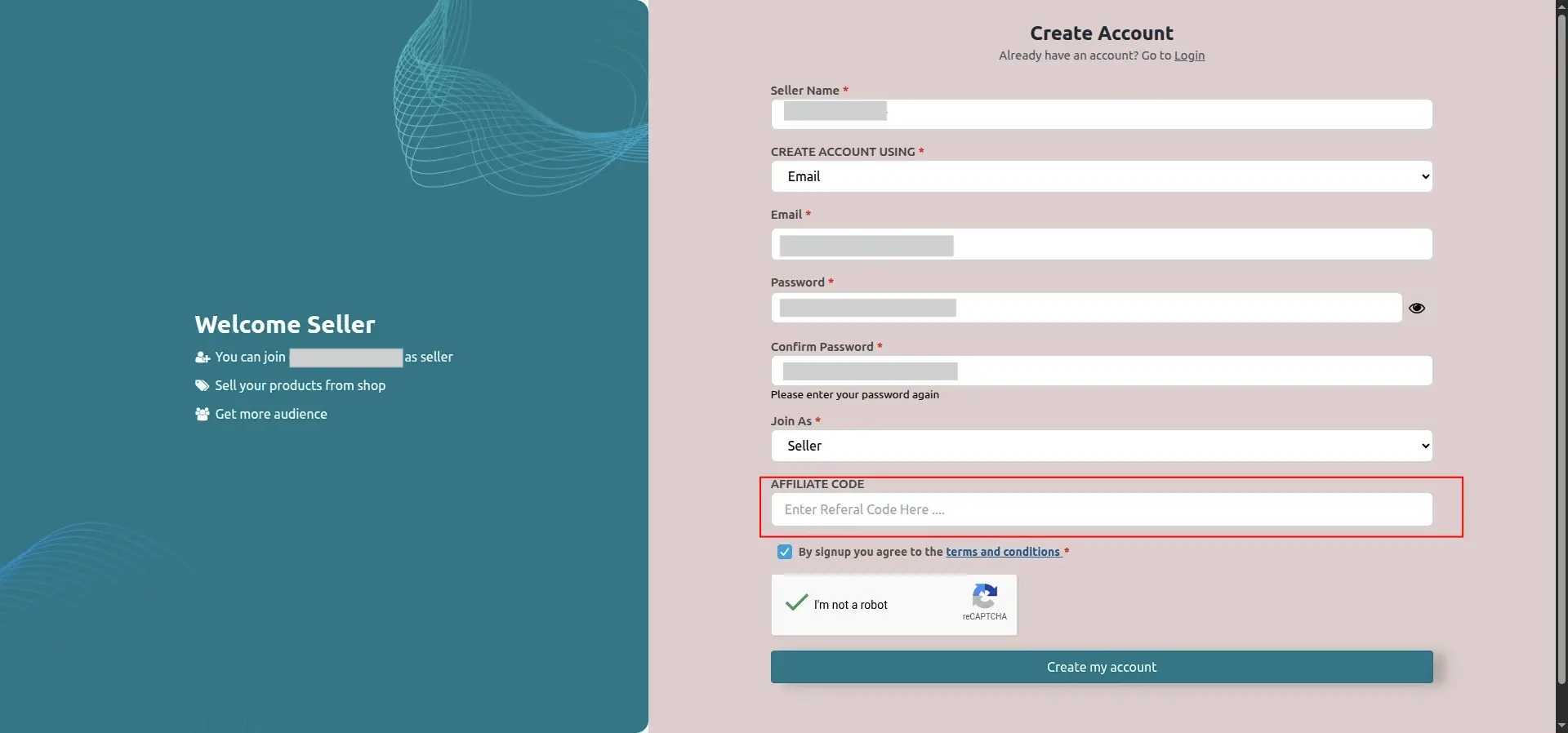
Sellers can register on the marketplace using either:
- The Affiliate Seller Signup URL
- The Affiliate Code shared by the affiliate
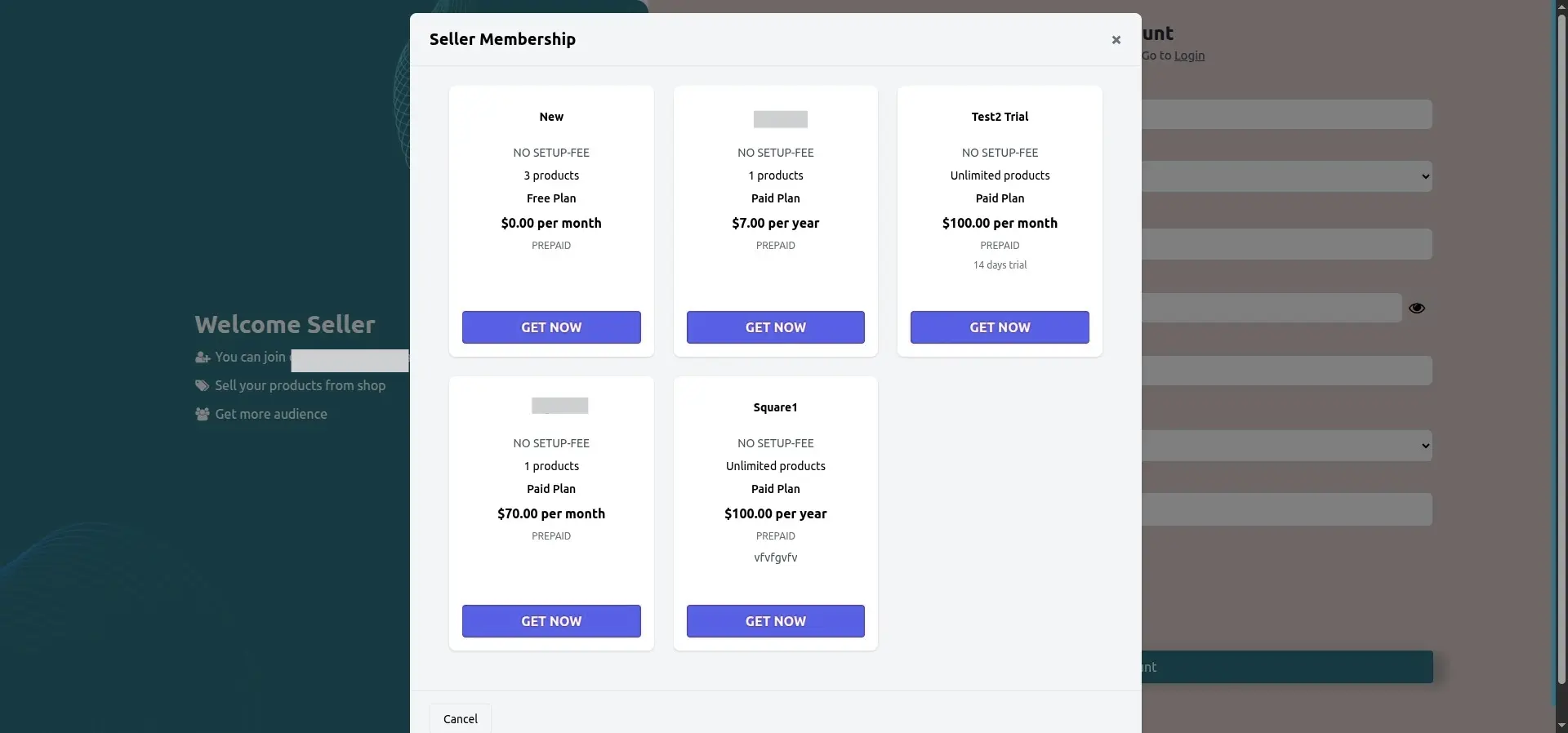
Seller Membership Selection
During seller registration, the seller must select a membership plan. The affiliate commission will then be calculated according to the commission configuration associated with the selected membership plan.
SCHEDULE DEMO
Click here to Schedule the demo of Multivendor marketplace App for Shopify