

Appearance
User Guide for How To Add Product Policies
In the Multi-vendor Marketplace app for Shopify, both you and your sellers can add policies to products. And your customers can see the policies on the product description page for your store.
The process will take just a few minutes of yours. So, all you need to do is just follow these three simple steps to add policies to products in the app.
STEP 1:- Enable the Product Policy Tab
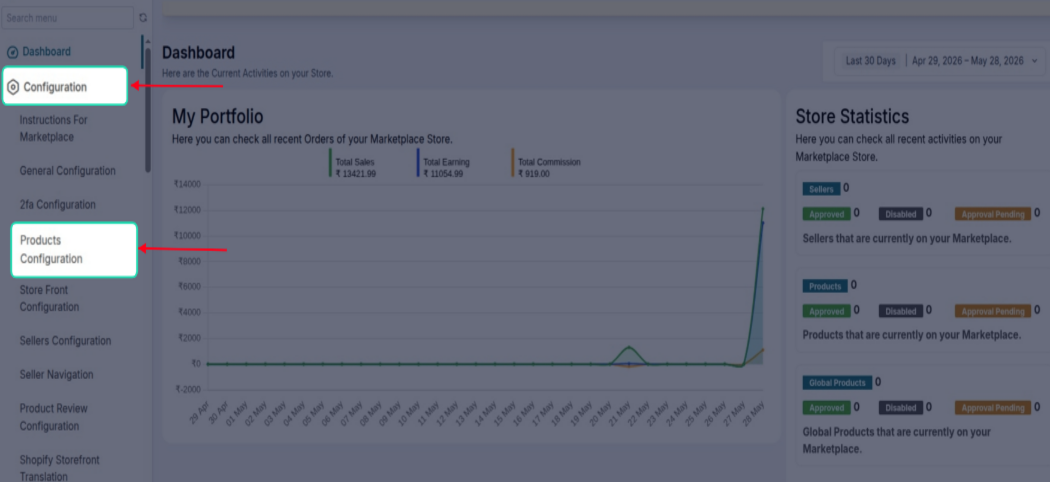
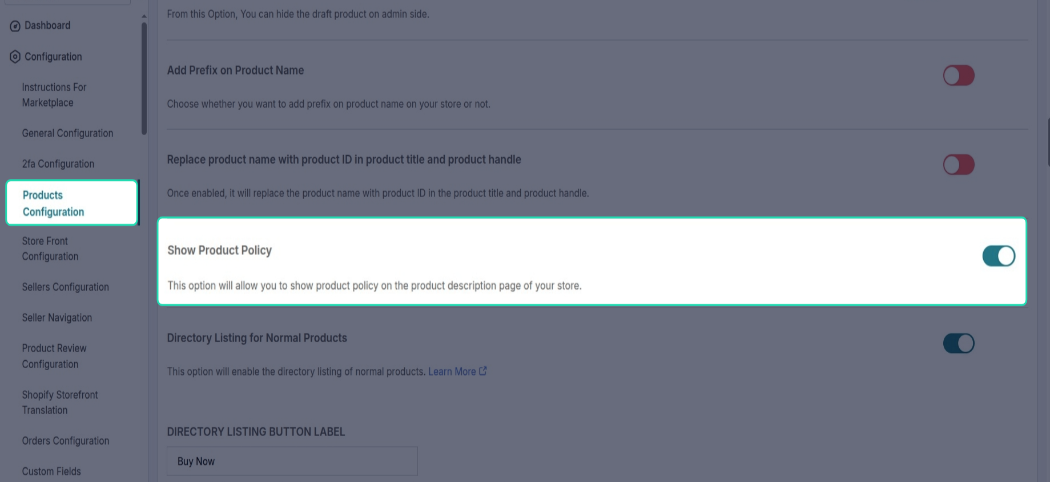
The first step is to visit the "Product Configuration" menu of the app and enable the "Show Product Policy" tab.
Now, scroll down and enable the Tab:-
STEP 2:- Add Policies to the Products
Visiting the Products section, select a product to which you want to add policy.
Multi-vendor Admin Panel>>Products>>Add Product or Edit Product>>Write Product Policy>>Save Changes.
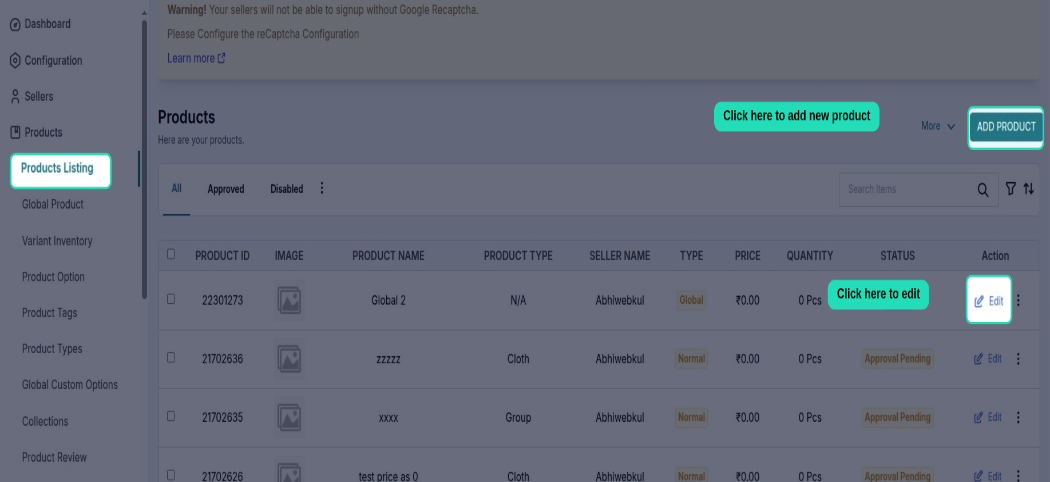
Now, on the Add/Edit Product Form, get the option to write policies.
Admin End

On Seller End
Now, sellers can also write product policies while adding or editing a product.
Multi-vendor Seller Panel>>Products>>Product Listing>>Add/Edit Product>>Write Product Policies>>Save.

STEP 3:- Add Codes to Product.liquid template file.
How to Display Product Policy on Front End?
Now, after adding the product policies, you need to add the codes to the product.liquid template file. This will make the policies visible on the product page of your store front end.
You will get the code from the "Instruction for Marketplace" section of the app.
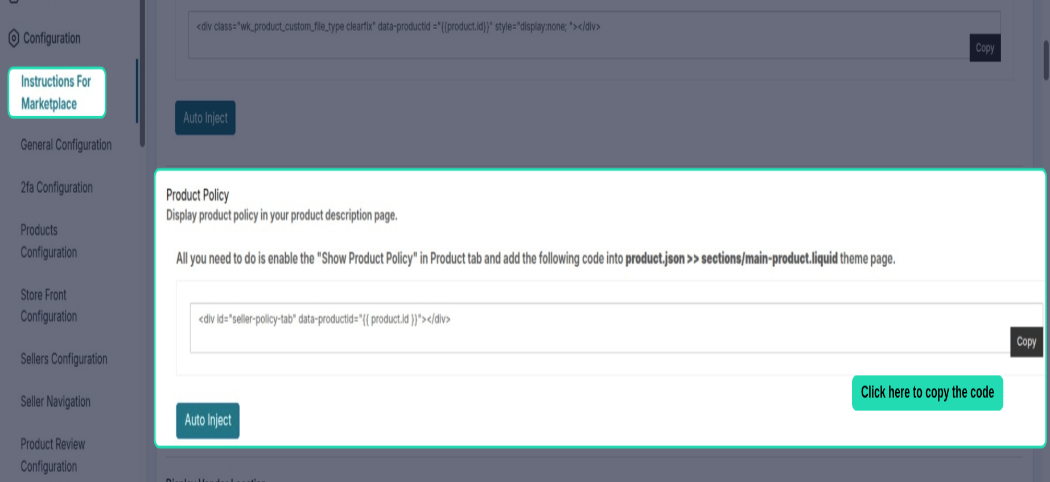
Once you get the codes, you can follow these steps to paste the codes into liquid files:
- Click on Online Store at Shopify end.
- Go To Themes.
- Then, click on Edit Code from the drop-down of the Action menu.
- Select the product.liquid template file and add the codes.
This is how the policy appears on the product description page:-

SCHEDULE DEMO
Click here to Schedule the demo of Multivendor marketplace App for Shopify
Support
Furthermore, if you have any questions/issue then please raise a ticket at https://webkul.uvdesk.com/en/customer/create-ticket/ or drop a mail at support@webkul.com