

Appearance
User Guide for 2-step Auth Configuration
2-Step Authentication for seller and staff logins
To enhance security across the platform, we've introduced a 2-Step Authentication process for both sellers and admin users.
This added layer of protection ensures that only authorized users can access their accounts.
How It Works:
During login, both sellers and admins will receive a One-Time Password (OTP) via email. This OTP must be entered to complete the login process, effectively verifying the user's identity.
Admin Login Authentication:
By enabling the "For Admin" option in the settings, the admin will receive an OTP every time they log in. This helps secure access to sensitive backend operations.
Seller Login Authentication:
Admins can choose to enable OTP authentication for sellers as well. Once this setting is active, sellers will be required to verify their email using an OTP during each login.
If the checkbox is selected, this becomes a mandatory step for all sellers.

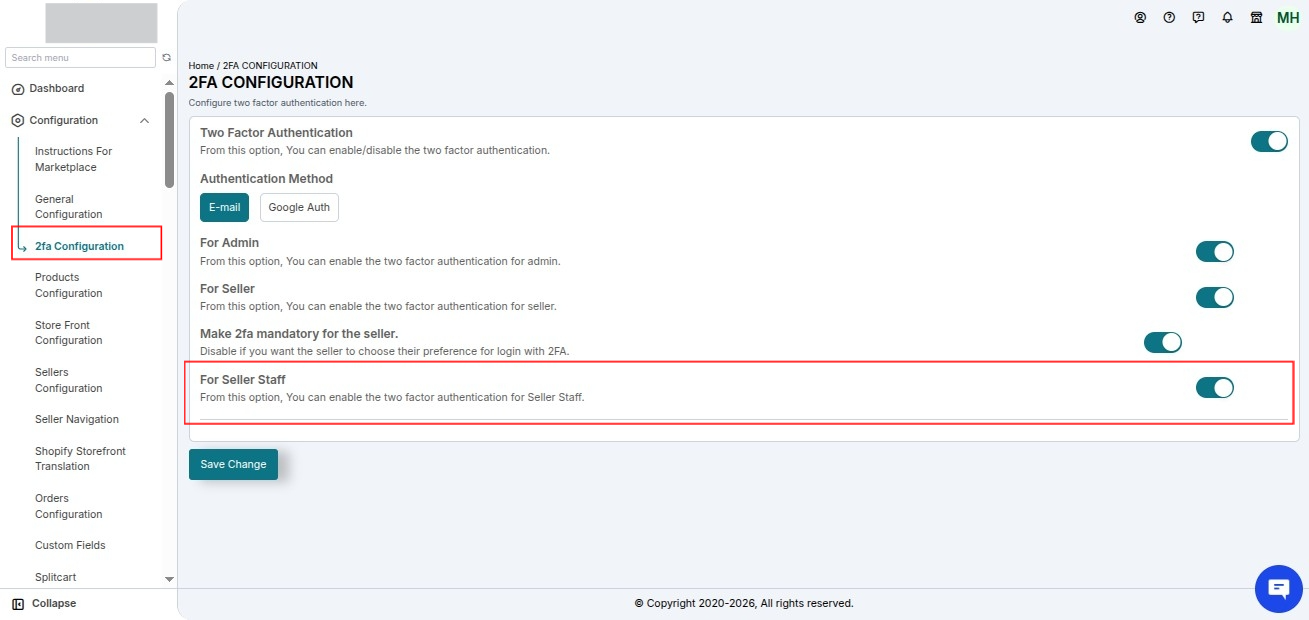
Seller Staff Login Authentication:
Admins can choose to enable OTP authentication for seller staff as well. Once this setting is active, seller staff will be required to verify their email using an OTP during each login.
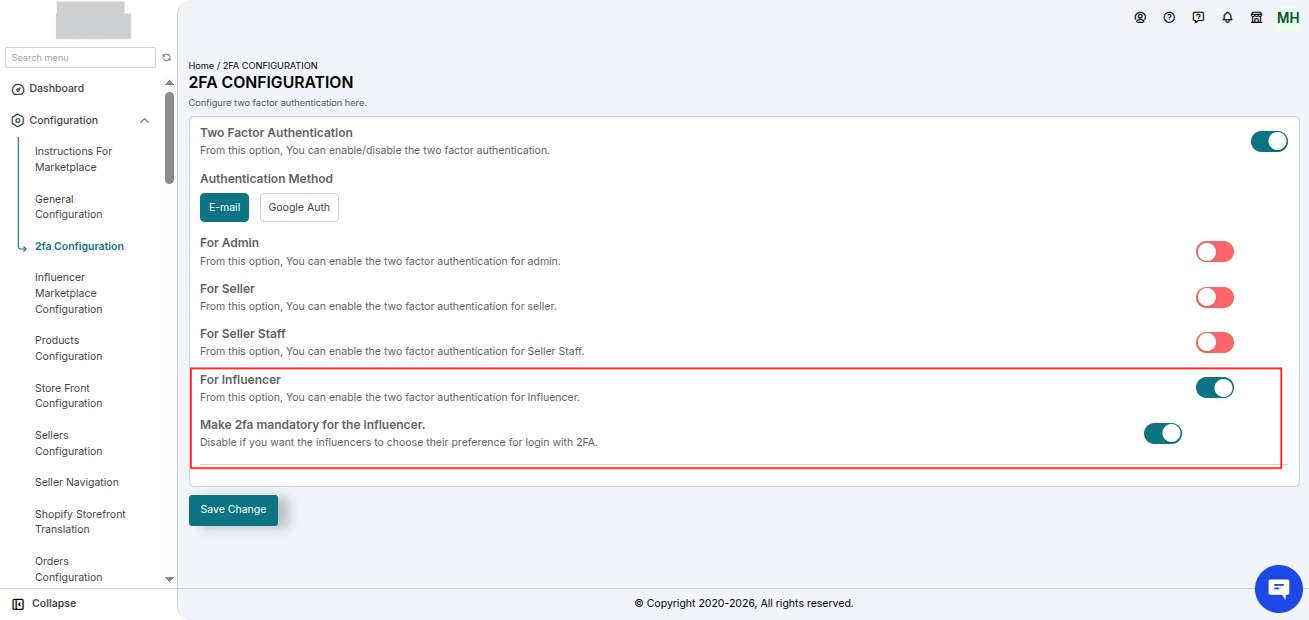
Influencer Login Authentication:
Admins can choose to enable OTP authentication for Influencers. Once this setting is enabled, Influencers will be required to verify their email using a One-Time Password (OTP) during every login.
Note: When enabled, OTP verification is mandatory for all Influencers before they can access their account.
Customizable Email Templates:
Admins also have the flexibility to personalize the OTP email content. Simply click on the “Click here to edit mail template” link to customize the email according to your brand’s tone and messaging.

SMS Authentication

Users add an extra layer of login security by enabling SMS Authentication. During login, they enter a mobile number with country code and verify it using an OTP.

Once verified, a login code is sent to verified number every time you sign in, ensuring secure access with each login.

SMS Authentication only works when the Sms Alert feature app is configured.
There is also a feature for admin staff and seller staff login.
Note – If the seller changes the Contact no., he/she needs to verify the no. again at the time of login.
Google Authentication

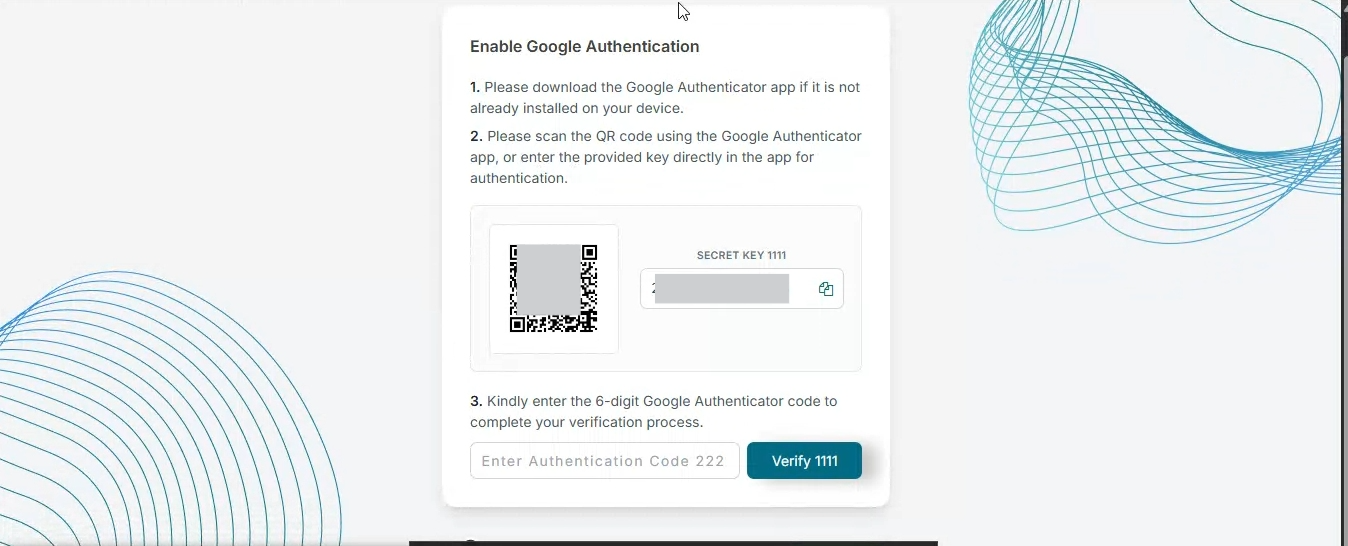
The admin adds an extra layer of security by enabling the Google Authentication option and scanning a QR code with the Google Authenticator app during the first login.

Once linked, a new login code is generated in the app for each login, helping protect access to sensitive backend operations.

Google Authenticator 2FA Management
A new configuration has been introduced to manage the existing Google Authenticator key when the 2FA status is disabled for a Seller or Influencer.
This configuration provides an option to decide whether the existing Google Authenticator key should be deleted when disabling 2FA.
How It Works
When Google Authenticator 2FA is enabled for a Seller or Influencer and their 2FA status is disabled, a confirmation pop-up will appear with an option to delete the existing Google Authenticator key.
The pop-up provides the option to either delete the existing key or keep it.
Delete the Existing Key
If the existing key is deleted:
- The Google Authenticator key associated with that Seller or Influencer will be removed.
- The previous 2FA setup will no longer be available.
- When 2FA setup is required again during login, the Seller or Influencer will need to set up Google Authenticator again.
Keep the Existing Key
If the existing key is not deleted:
- The existing Google Authenticator key will remain saved.
- Only the 2FA status will be disabled.
- The existing key will remain available if 2FA is enabled again.
Steps to Manage the Google Authenticator Key
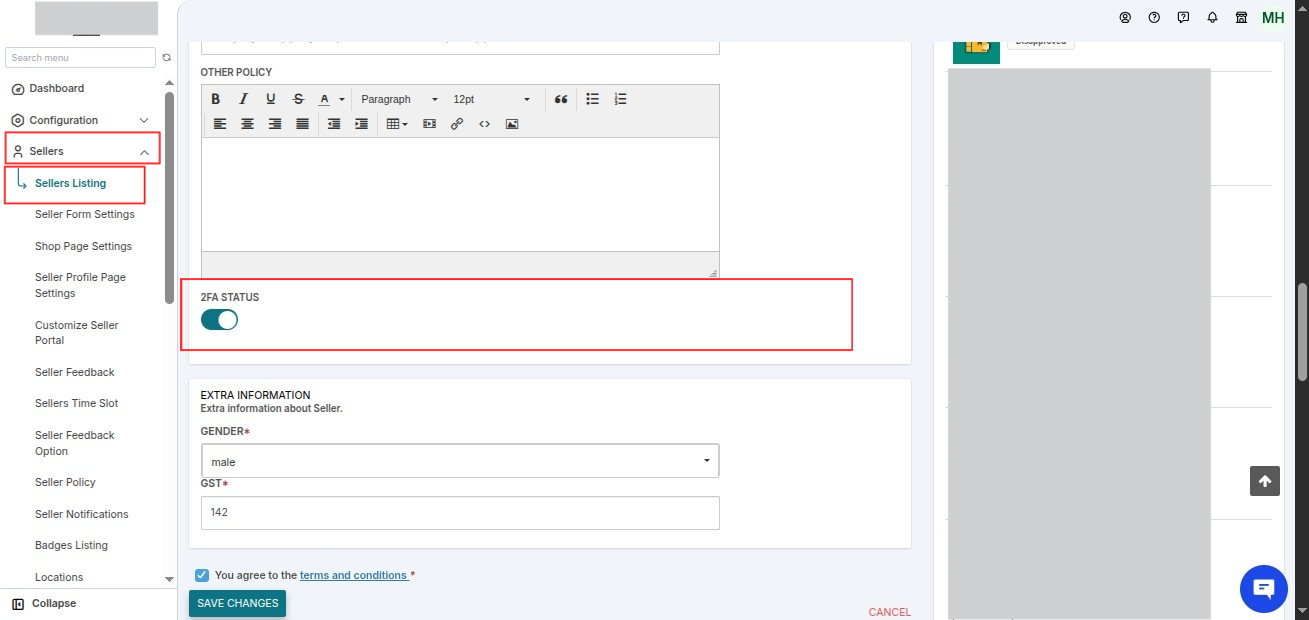
Step 1: Navigate to Seller → Seller Listing, open the required Seller or Influencer, and go to the Edit Seller section to access the 2FA settings.
Step 2: Disable the 2FA status for the required Seller or Influencer.
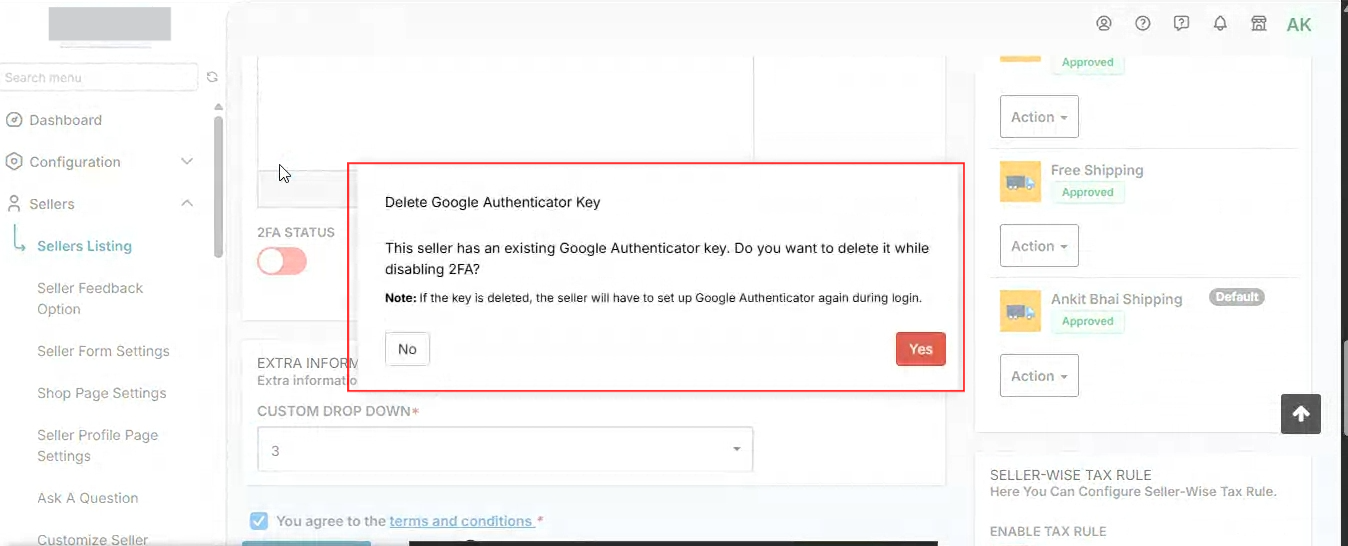
Step 3: A confirmation pop-up will appear asking whether you want to delete the existing Google Authenticator key.
Step 4: Select the required option:
- Delete: Removes the existing Google Authenticator key.
- Keep: Retains the existing Google Authenticator key.
Step 5: If the key was deleted, the Seller or Influencer will need to complete the Google Authenticator setup again during login when 2FA setup is required.
SCHEDULE DEMO
Click here to Schedule the demo of Multivendor marketplace App for Shopify