

Appearance
User Guide for Envia Shipping
Multi-Vendor Marketplace for Shopify is here with another marketplace shipping feature app, i.e., Envia Shipping.
Using this featured app, the merchants can enable shipment through Envia. Moreover, he can allow sellers to automatically generate shipping labels.
This feature app is available only with the Multivendor Pro Plan ($60/month). Moreover, you need to enable the Shipping add-on (free) from the ‘featured apps’ section of the app.
CHARGES:
This feature will have an additional charge of USD 10 per month over & above your current multivendor marketplace plan.
NOTE:
Above all, access to Shipping requires your Shopify store to be on the plan that supports Real-Time Carrier-Calculated Shipping.
ENVIA SHIPPING FEATURE APP IS AVAILABLE BOTH FOR RATE CALCULATION & FULFILLMENT.
Installation
The admin needs to visit the multi-vendor marketplace admin panel > click on the three dots > click on the featured apps. Further, enable the Envia Shipping feature app.
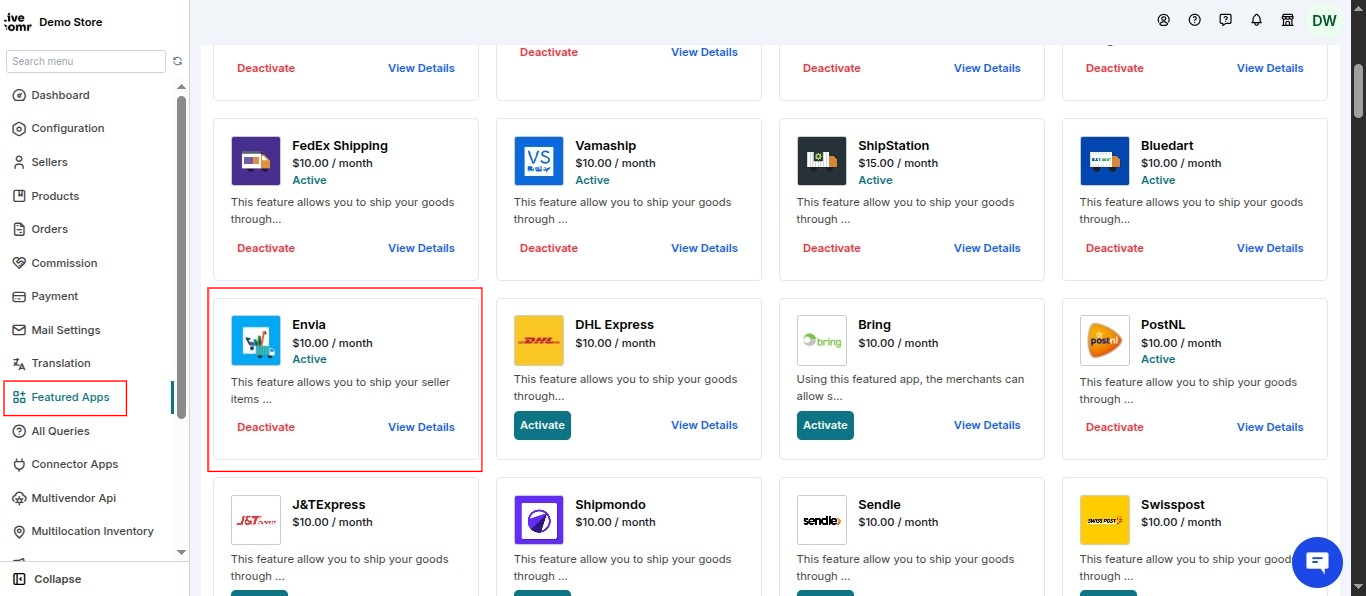
Furthermore, agree & approve the charges:

Configuration: Admin End
Firstly, the admin needs to enable this shipping method from the shipping configuration. So, for this, visit:
Multivendor marketplace admin panel > configuration > shipping configuration.
Click on the three dots under the Action menu & further, click on enable.

Moving on, the admin needs to configure the Envia Shipping.
So, for this, either click on Configure Shipping or go to multi vendor marketplace admin panel > configuration > Envia Shipping Configuration. Refer:

Configure Envia Shipping
SANDBOX MODE
If you want to test the functionality of this shipping add-on, enable the sandbox mode. In short, use the sandbox mode for testing purposes only.
AUTOMATIC GENERATE SHIPPING LABEL
Enable this option if you want to automatically generate the shipping labels on order fulfillment.

Furthermore, you need to choose the country from the drop-down menu on the basis of your Envia account. Enter the access key provided By Envia.
It will be different for the Production and Development Environment and lastly and save.
Further, click on 'Get Carrier Code', select the carrier code for shipping and order fulfillment from drop-down list.

Lastly, enter the following details:
- Usage As: Select whether you want to use this shipping app for both fulfillment & shipping or only just for fulfillment.
- Choose Weight Unit: Kilogram (KG) or Pound (LB)
- Choose Lenght Unit: Centimeter (CM) or Inches (IN)
- Lastly, choose whether the shipping label cost will be borne by the admin or the seller.
Set Shipping Method For Sellers:
The admin can further set the shipping methods for his sellers.
Go to multi vendor marketplace admin panel > Sellers > Seller Listing > Edit (under Action).
On the edit seller page, the admin will have the following block from where he needs to enable the Envia Shipping. It can later be changed to enable/disable/set as default state:

Further, the admin can view all the sellers which are using this shipping method by going to multi vendor marketplace admin panel > configuration > Shipping Configuration:

Make Shipping Address Phone Number Mandatory
To use this feature add-on, the admin needs to make the Shipping address phone number mandatory at the time of checkout.
So, to do this, go to Shopify Backend > Settings > Checkout > Under Form Options, make Shipping address phone number as Required:

Configuration: Seller End
Further, the seller can configuration Envia Shipping from his panel.
Go to multi vendor marketplace seller panel > configuration > shipping configuration> enable/disable the shipping:

Further, go to Global Configuration:

So, from here, the seller can do the Shipping Packet Configuration:

Moreover, under Envia Shipping Configuration, select the Package Type & save the details.

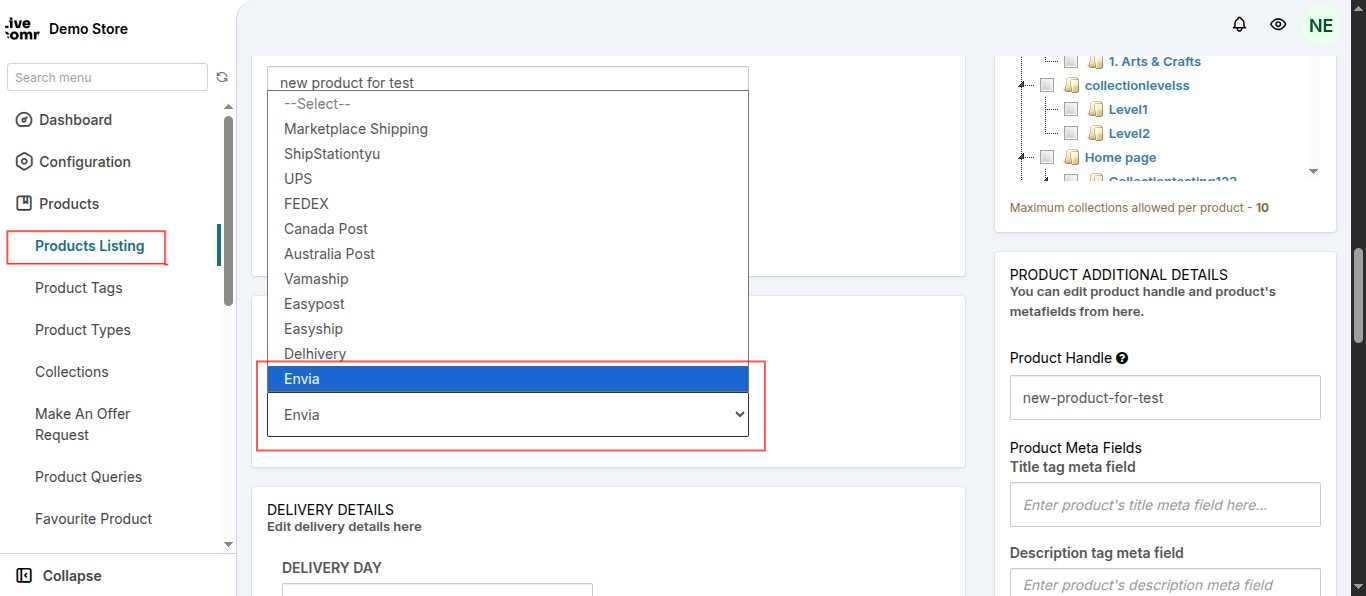
The seller can set the shipping method as by-default so that every single product created by him will have Envia Shipping as the by-default shipping method.
If not this, the seller can set the shipping method on individual products while adding/editing them.
So, go to Multi-vendor marketplace seller panel > Products >Product Listing > Add/Edit the Product:
Shopify Store Frontend
Likewise, the customer will have an option to select the shipping method as Envia after entering the information:

Shipping Label Generation
Seller will have an option to generate a shipping label from their seller panel. Also, shipping labels can only be generated for fulfilled orders.
Fulfilling order by Envia:
Go to Multi-vendor marketplace seller panel > Orders > Order Listing > View (under Action). Select the method of order fulfillment as Envia and fulfill the order.
As soon as the order will be fulfilled, the shipping label will be automatically downloaded (if configured so).

Then select the method:

Moreover, if you again want to download the shipping label, go to ADDITIONAL ORDER DETAILS, click on Actions > Print Shipping Label:

Furthermore, this is how the shipping label will be downloaded in pdf form:

Create A Pickup Request
The seller can generate a pickup request for the Envia courier services to pick the order from your warehouse:
For this, go to ADDITIONAL ORDER DETAILS, click on Actions > Create Pickup Request:

This action will give you a pop-up:

The pickup time from & pickup time to should have a difference of 3 hours. Enter the required details & save.
Further, the seller can view the generated pickup request on the same page under PICKUP REQUEST DETAILS section:

The admin & seller both can view the pickup request details & can cancel the request.
NOTE:
Once created, the pickup request can’t be generated or edited again. Moreover, while creating the pickup request, you will get an option to select either same day pickup or next-day pickup.
In the case of same-day: Pickup time will be till 12 am.
In the case of the next day: Pickup time will be between 9 am to 8 pm.
SCHEDULE DEMO
Click here to Schedule the demo of Multivendor marketplace App for Shopify