

Appearance
User Guide for Seller Notification
Introduction:
We have introduced a new feature in our Multivendor Marketplace App. This allows you to send custom notifications to your sellers.
Check the below video of Seller Notification:
Configuration
Let's dive into the process to configure this feature in your multivendor app for Shopify.
To enable this, please visit-
Multivendor Admin Panel > Sellers > Sellers Notification
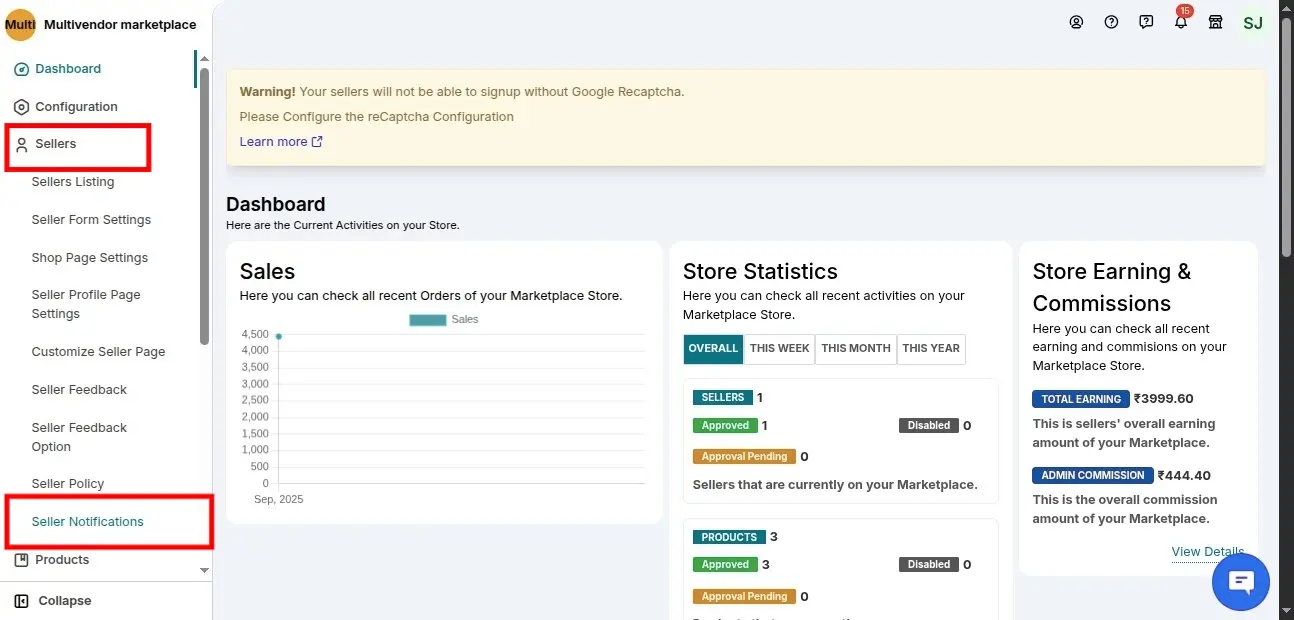
Clicking on the Seller Notification you would be redirected to the page where you can add as well as check notifications
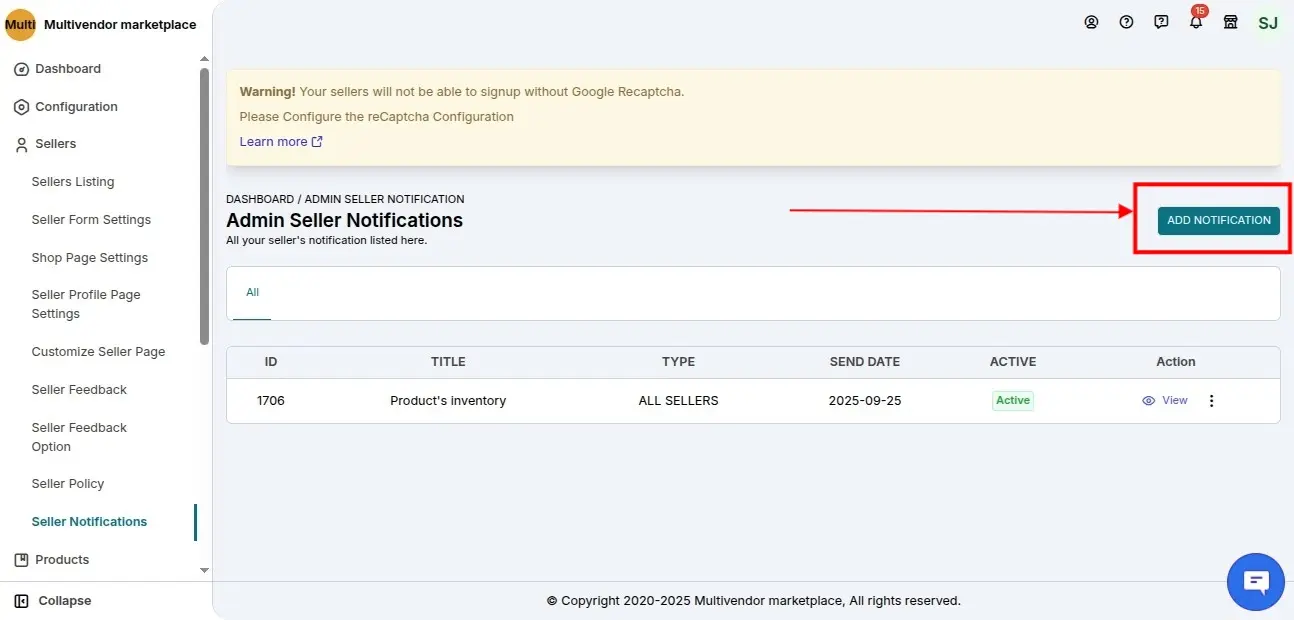
Add Notification
You can click on "ADD NOTIFICATION" in order to create a new notification for the sellers
To add a new notification you need to enter the title as well as the description of the notification. Now click on submit.
NOTE- The title limit is 100 characters and the limit for a notification message is 5000 characters.
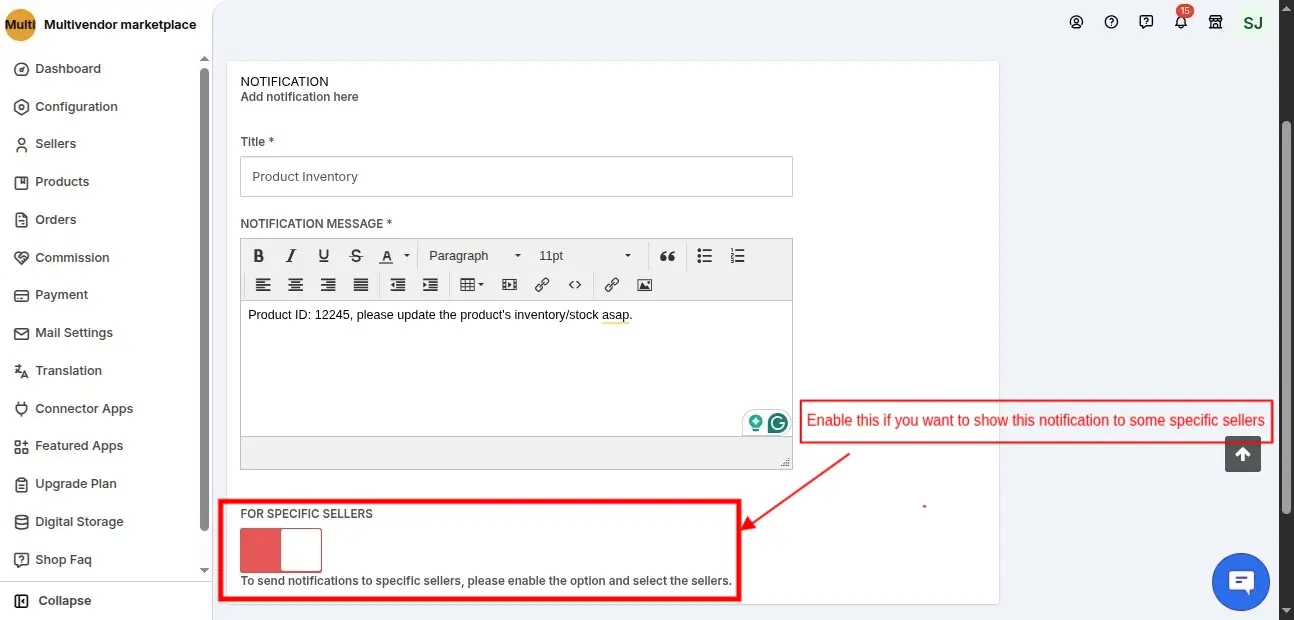
Now, click on submit and the same will be visible to the sellers on their respective seller panels accordingly.
Seller Notifications
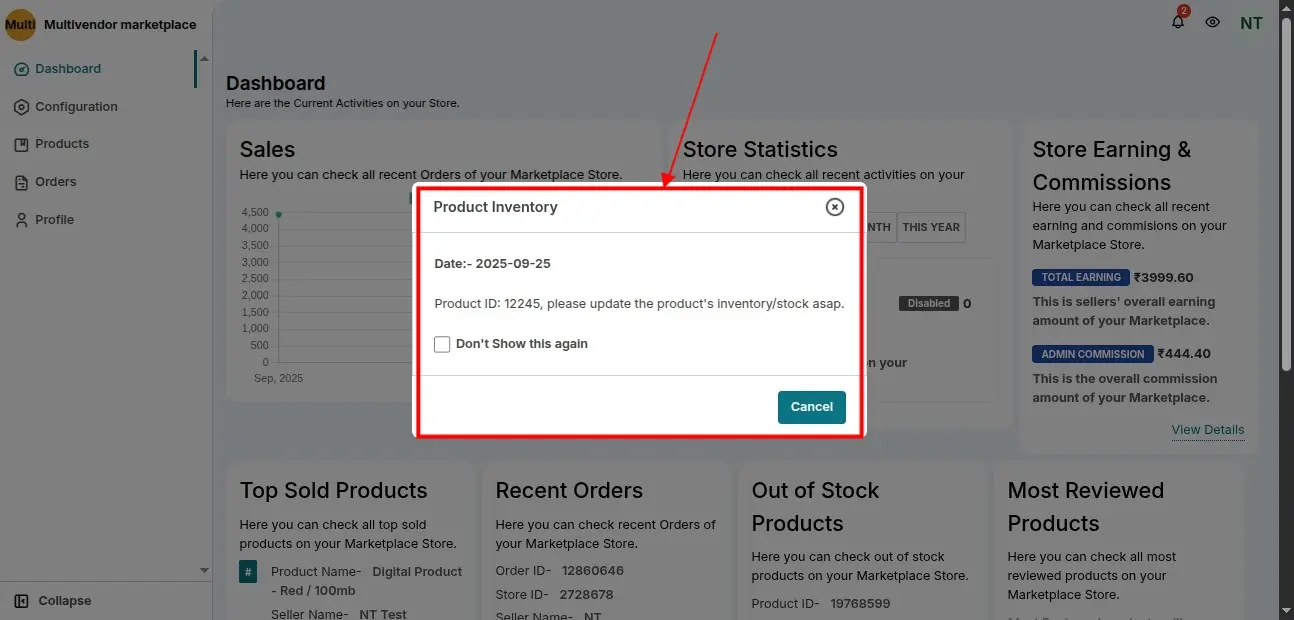
The latest notification added by the admin will appear on the seller dashboard as a pop-up when sellers will login to their seller dashboard.
Merchant Notifications
By clicking on the bell icon, the sellers will be able to view the top 5 recent notifications here added by the admin also they can click on view all to check all the previous notifications
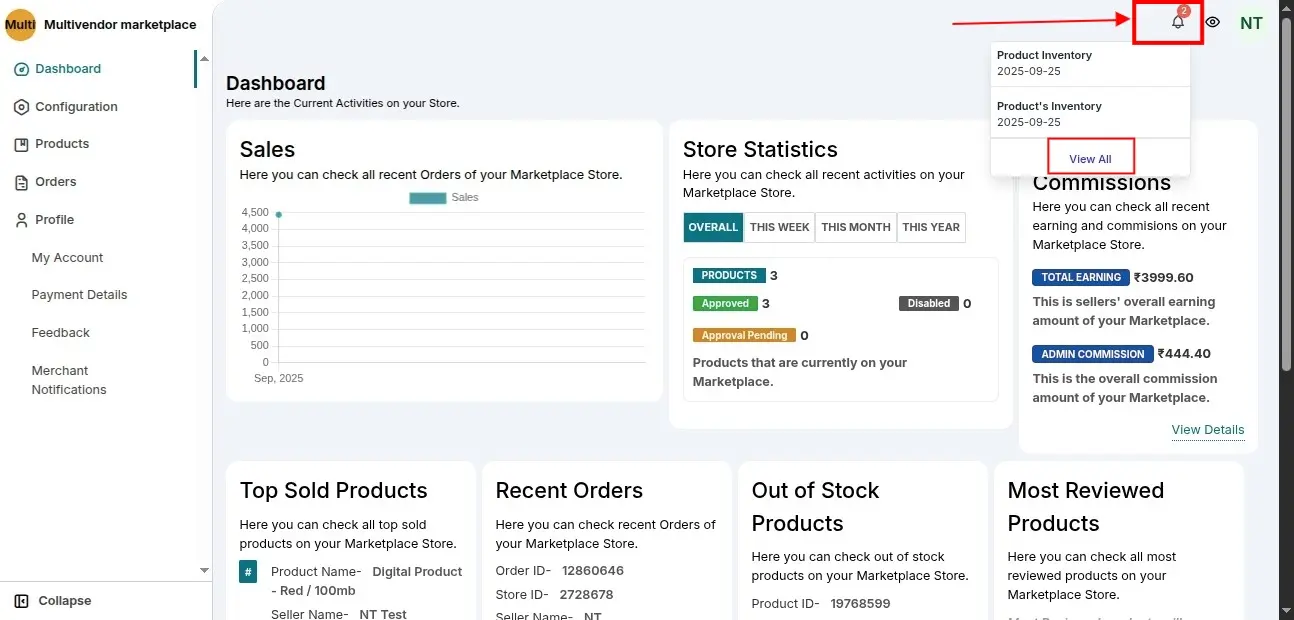
Seller can also view their notification by logging in their panel than going to merchant notification as shown below:

Admin Seller Notifications
Now, the admin can also check their created notification in the notification panel. Also, the admin can view & delete it by clicking on three dots.
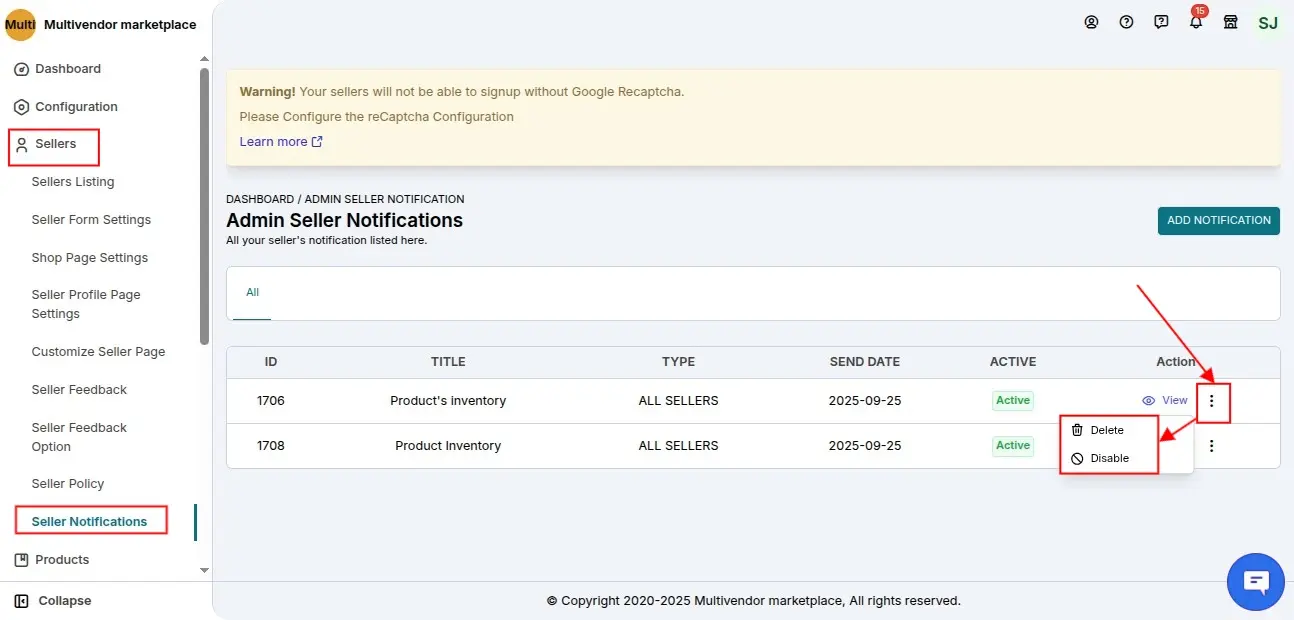
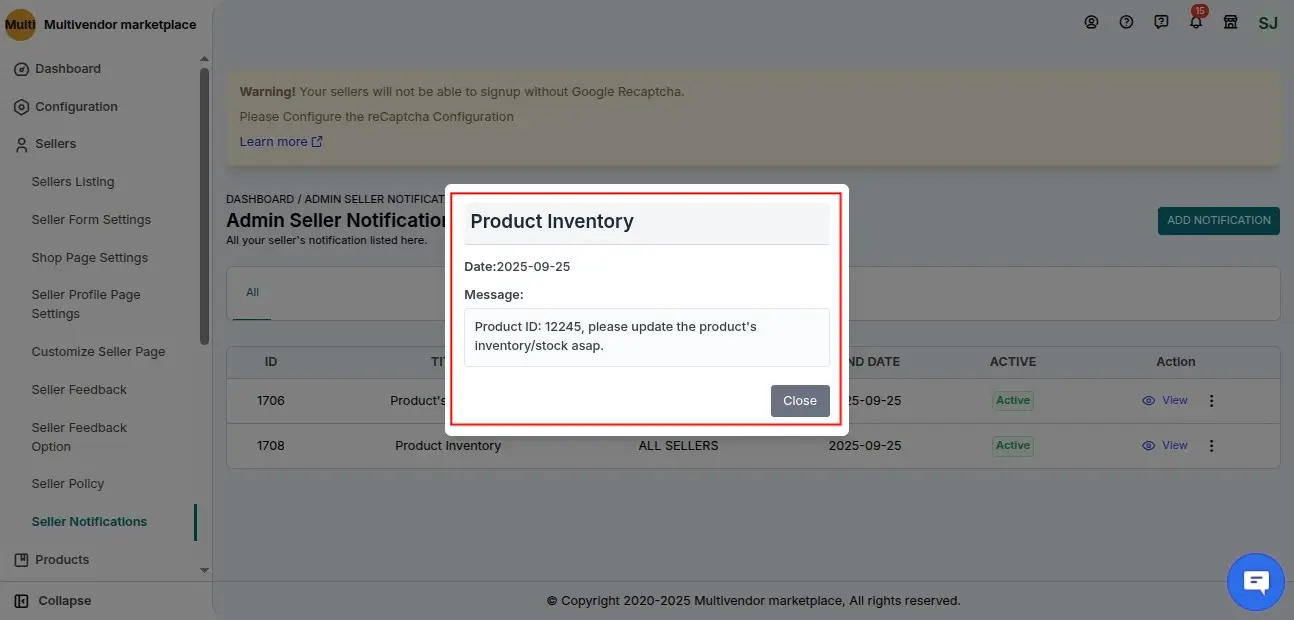
View Notification

Delete notification
SCHEDULE DEMO
Click here to Schedule the demo of Multivendor marketplace App for Shopify