Classic Theme
Zenith Theme
Webkul
Get App
Support
Classic Theme
Zenith Theme
Webkul
Get App
Support
  • Introduction

    • Getting Started
    • Overview
  • Configuration

    • General configuration
    • Product configuration
    • Seller configuration
    • 2-Step Auth Configuration
    • Discount Configuration
    • Custom Fields
    • Invoice configuration
    • Configuration Updates
    • Minimum Purchase Quantity
    • Minimum Purchase Amount
  • Seller

    • Seller Profile Page Settings
    • Seller Notification
    • Advanced Seller Policy
    • Seller Navigation
    • Seller Updates
  • Product

    • Digital products
    • Import products
    • Add products
    • Collection sync
    • Multilevel Collection
    • Products updates
    • Dual Sync
  • Commission

    • Overview
    • Commission-Type
  • Payment Flow

    • Seller-Payment
    • Stripe
    • Stripe-configuration
    • Paypal
    • RazorPayX
    • Seller-payment-configuration
  • Mail Configuration

    • Mail SMTP
    • Google OAuth SMTP
  • Featured-App

    • Overview
    • Shipping

      • Marketplace Shipping
      • USPS SHIPPING
      • ECOM EXPRESS SHIPPING
      • CANADA POST SHIPPING
      • STORE PICKUP
      • AIR SPEED SHIPPING
      • AUSTRALIA POST SHIPPING
      • UPS SHIPPING
      • FEDEX SHIPPING
      • VAMASHIP
      • SHIPSTATION
      • BLUEDART
      • ENVIA SHIPPING
      • DHL EXPRESS
      • BRING SHIPPING
      • POSTNL
      • J&TEXPRESS SHIPPING
      • SHIPMONDO
      • SENDLE SHIPPING
      • SWISSPOST SHIPPING
      • DELHIVERY
      • EASYPOST SHIPPING
      • EASYSHIP
      • SHIPROCKET SHIPPING
      • SBEEDY SHIPPING
      • SHIPPIT SHIPPING
    • Connector

      • SELLER SHOPIFY STORE CONNECTOR
      • WOOCOMMERCE CONNECTOR
      • SHOPIFY ETSY CONNECTOR
      • SHOPIFY MAGENTO CONNECTOR
      • SHOPIFY PRESTASHOP CONNECTOR
      • SQUAREUP CONNECTOR
      • LINNWORKS CONNECTOR
      • SOOPOS CONNECTOR
      • BIGCOMMERCE CONNECTOR
      • AMAZON CONNECTOR
      • SHOPIFY EBAY CONNECTOR
      • DYTEL POS CONNECTOR
    • Seller Add-Ons

      • SELLER BUYER CHAT
      • SOCIAL NETWORK TABS
      • SELLER VACATION APP
      • PWA
      • SELLER AND CUSTOMER BADGE
      • SELLER TAGS AND CATEGORIES
      • SELLER TIME SLOT MANAGEMENT
      • SOCIAL MEDIA LOGIN
      • EMAIL MARKETING
      • WHATSAPP INTEGRATION
      • AFFILIATE-REFERRAL SELLER
    • Marketplace Product Add-Ons

      • FAVORITE PRODUCT|SELLER
      • STOCK MANAGEMENT
      • MAKE AN OFFER
      • PRODUCT FEED
      • SPONSORED PRODUCT
      • INDIAN GST
      • PRODUCT EXPIRY
      • SLOT PRICING
      • DAILY DEALS
      • ARTIST PRODUCT DESIGN
      • PRODUCT REVIEW
      • CUSTOM OPTIONS
      • PAY WHAT YOU WANT
      • PREORDER INTEGRATION
      • DELIVERY SLOT MANAGEMENT
      • PACK PRODUCT INTEGRATION
      • DELIVERY BOY INTEGRATION
      • E-SIGNATURE
    • Marketplace Other Add-Ons

      • LOCATE YOUR PICKUP STORE
      • SUBSCRIPTION PRODUCT WITH STRIPE CONNECT
      • CHAT GPT
      • MULTIVENDOR DATABASE BACKUP
      • WATERMARK
      • SELLER BLOG
      • EASY GROUP BUY APP
    • Marketplace Miscellaneous Add-ons

      • SMS ALERT
      • WEGLOT TRANSLATION
      • MULTIVENDOR API
      • SELLER STAFF
      • ADMIN STAFF
      • MULTI LOCATION INVENTORY
      • CUSTOMER ORDER MANAGEMENT
      • SPLIT CART
      • ROUTE INSURANCE
      • ZOHO INTEGRATION
  • Hyperlocal Marketplace

    • Hyperlocal Marketplace
  • Seller Membership

    • Seller Membership
  • Global Product

    • Global Product
  • Product Auction

    • Product Auction
  • Booking Product

    • Booking Product
  • Dynamic Mockups

    • Dynamic Mockups
  • Crowdfunding

    • Crowdfunding
  • Ask a Question

    • Ask a Question

Discount

The Webkul Multivendor app now makes it easier for admins to empower sellers with discount management.

As an admin, you can decide whether sellers are allowed to create discounts directly from their dashboards.

Based on your configuration, sellers will be able to:

1- Create discounts on individual products
2- Create discounts on the overall order

Create Discounts On Products

The admin needs to follow the steps to create discounts on products.

Configuration: Admin End

To configure this feature, follow the path:

Admin Dashboard>>Configuration>>Discount Configuration
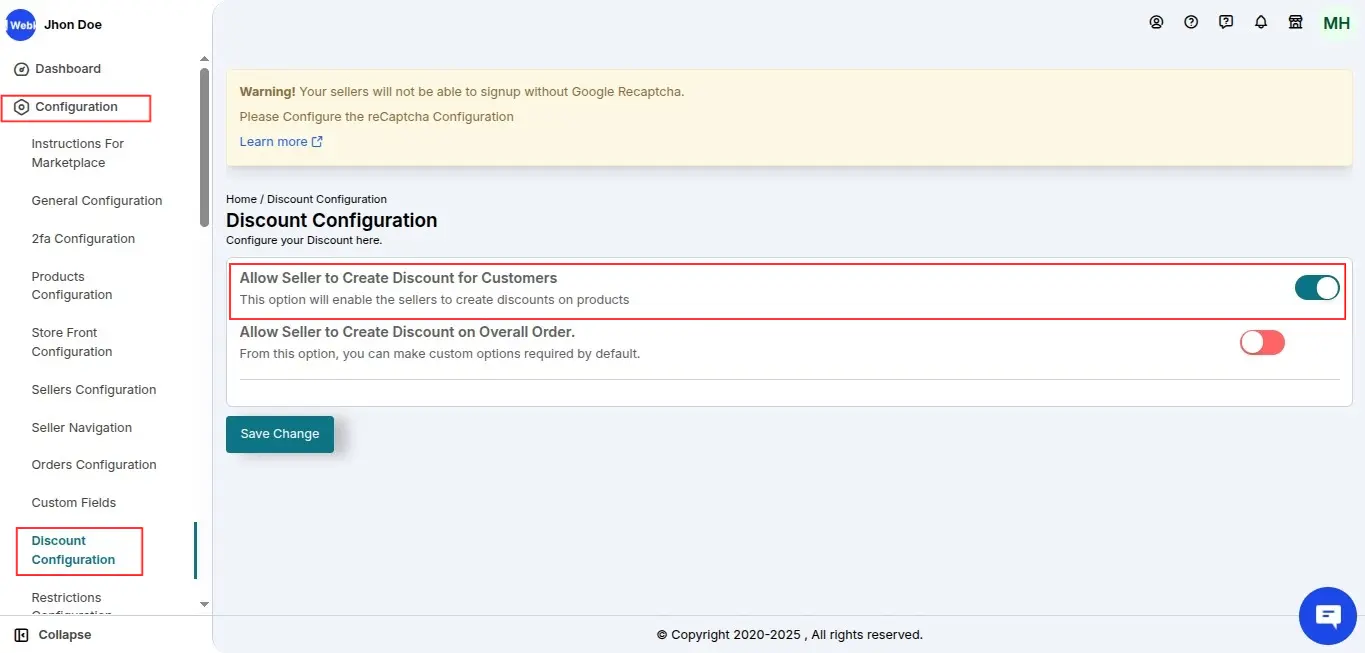
Discount(Admin end)

Click "Allow Seller to Create Discounts on Products" and save the settings.

As soon as the admin configures these settings, sellers will get the option to create discounts on products from their respective seller panels.

Seller Creating Discount on Product

The seller needs to follow these simple steps to add discounts to products:

Go to the Product section>>Select Discount >>Add Discount button.
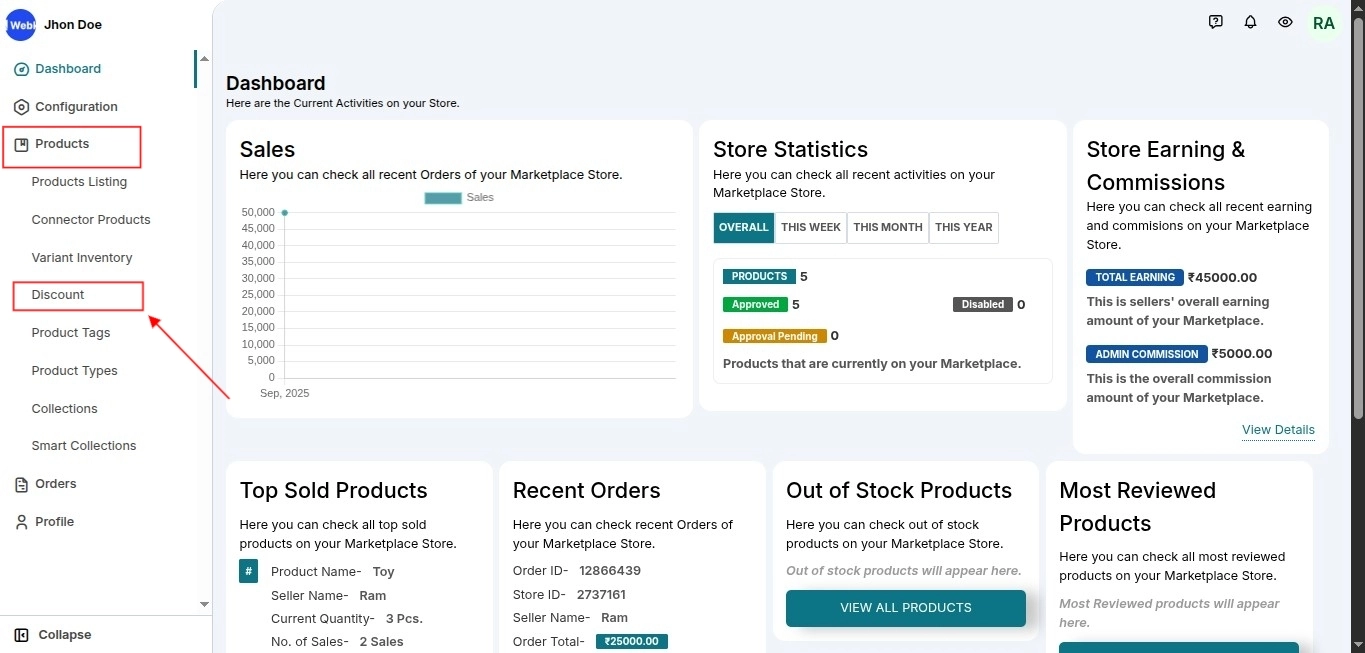
Discount

product

Select the discount type (Percentage or Fixed), enter the discount value, and choose the product to apply it to.

Set the start and end dates to define the validity period of the discount, then save changes.

The seller will see all the discounts added to their store in the Discount section.

Create Discounts On Order

The admin needs to follow the steps to create discounts on overall orders.

Configuration: Admin End

To allow sellers to create discounts on the overall order, the admin needs to navigate to:

Admin Dashboard>>Configuration>>Discount Configuration

Enable “Allow Seller to Create Discounts on Overall Order” and save the settings.

Allow

Once configured, sellers will have the option to create discounts on the overall order from their respective seller panels.

Seller Creating Discount on Order

The seller needs to follow these steps to create discounts on overall orders:

Go to the Product section of the seller panel.

Select Discount from the drop-down menu.

Click the Add Discount button.

Select the Discount Type (Percentage or Fixed) and enter the discount value. Select 'Order' as the discount applies to.

Set the start and end date of your discount as the validity period. Save changes.
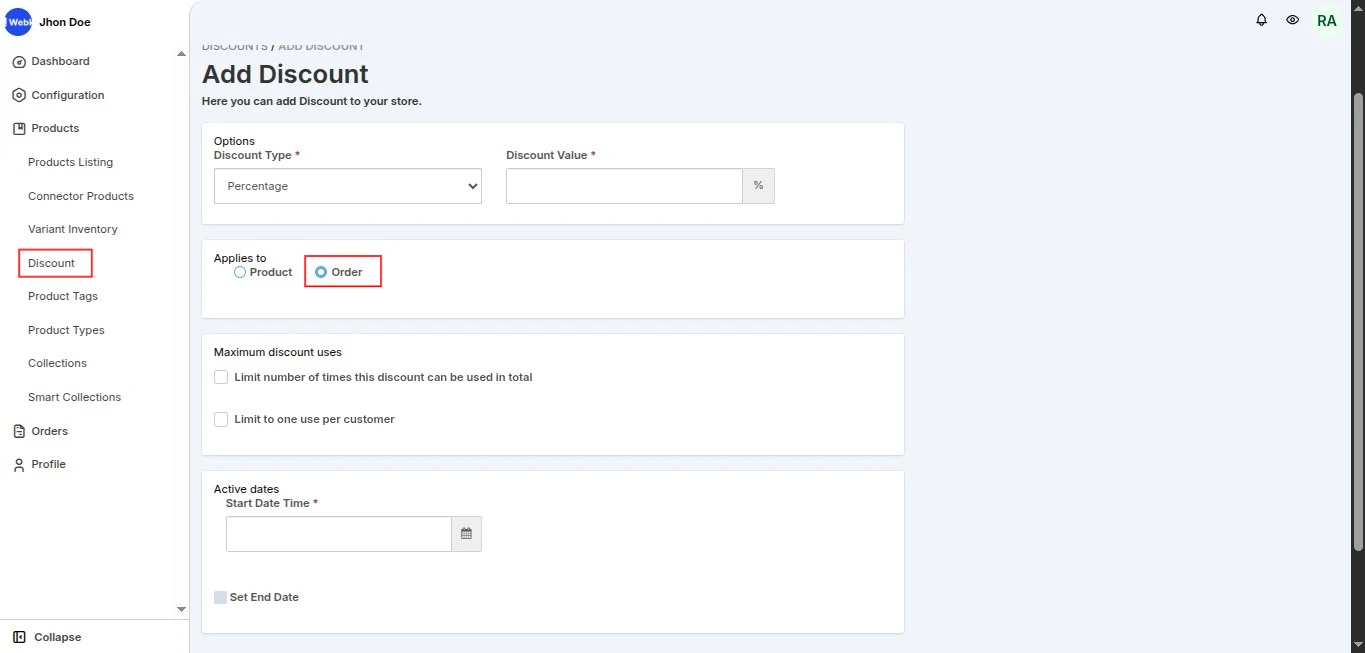
Dis

The seller will see all discount codes added to their store in the Discount section.

All sis counts

Please note: The overall order discount works based on the seller’s smart collection, and the discount will also be applied seller-wise on the front end.

Discount Status

Scheduled: If the start date is in the future.

Active: If it has started but not yet ended.

Expired: If both the start and end dates have passed.

Front end

In order to display the discount on the front, you need to add the codes to the suggested liquid files (as shown in the screenshot).

So, go to the Multivendor Admin Panel and navigate to:

Configuration >>Instruction for Marketplace >> Scroll down to get the codes for “Discount” >> Copy the code from there & add it to the instructed liquid files.

codes

In this way, the discount will be visible on the front.

Front

Last Updated:: 12/1/25, 10:57 AM
Contributors: pratik-webkul
Prev
2-Step Auth Configuration
Next
Custom Fields